
FREE
Loading…
Batch photo color correction fixes faded, washed-out scans in one go. Add up to 50 photos and AI brings back deep blacks, natural contrast and true color. Only the colors change: your full-resolution scan keeps every pixel, so faces, text and film grain stay exactly as scanned.
Drop your scans here or click to choose
JPG, PNG or WebP, any size. Your full-resolution files stay on this computer; only a small copy is sent to the AI.
Last updated:
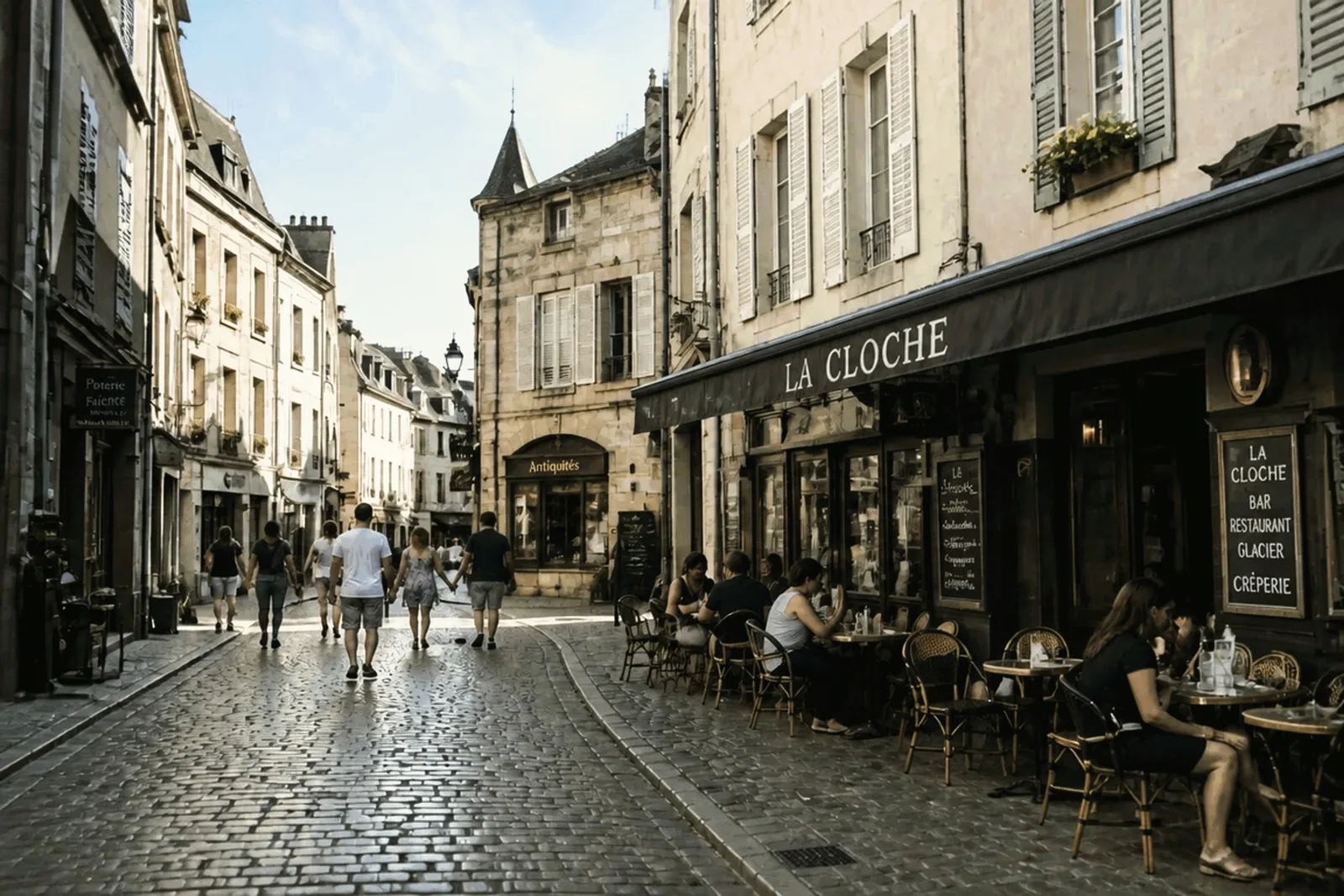
These two examples are clean photos we faded on purpose, with lifted blacks, a magenta cast and washed-out color, the way old slides fade. That way you can compare each result with the photo as it was. The results are unretouched output of this tool.
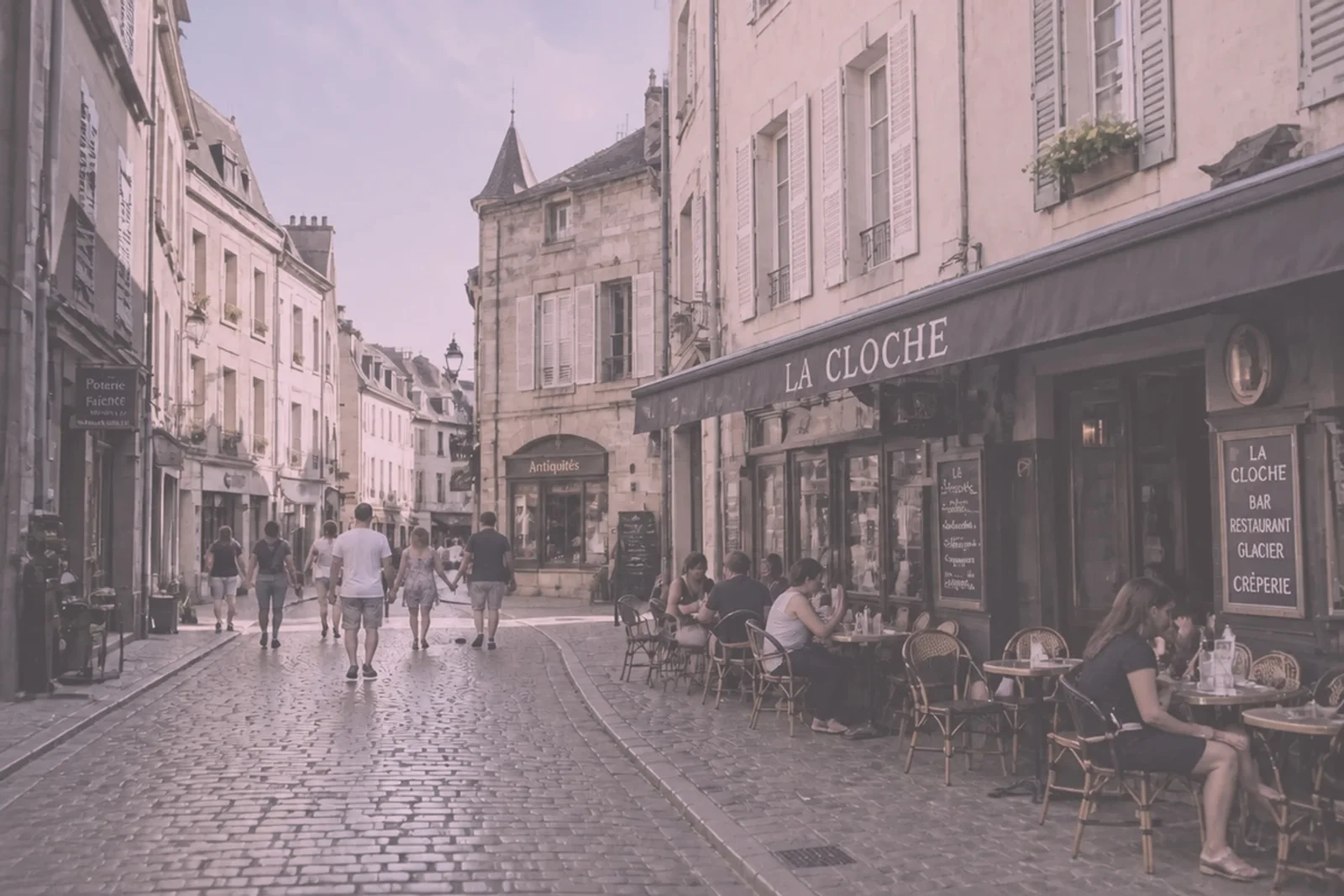
This is how a faded slide often scans: the sky turns pink, blacks lift to a milky gray and every color loses its strength.
After correction the shadows under the awning are black again, the stone is its own warm beige and the sky is blue. The sign, the cobblestones and every person are the original scan’s pixels.
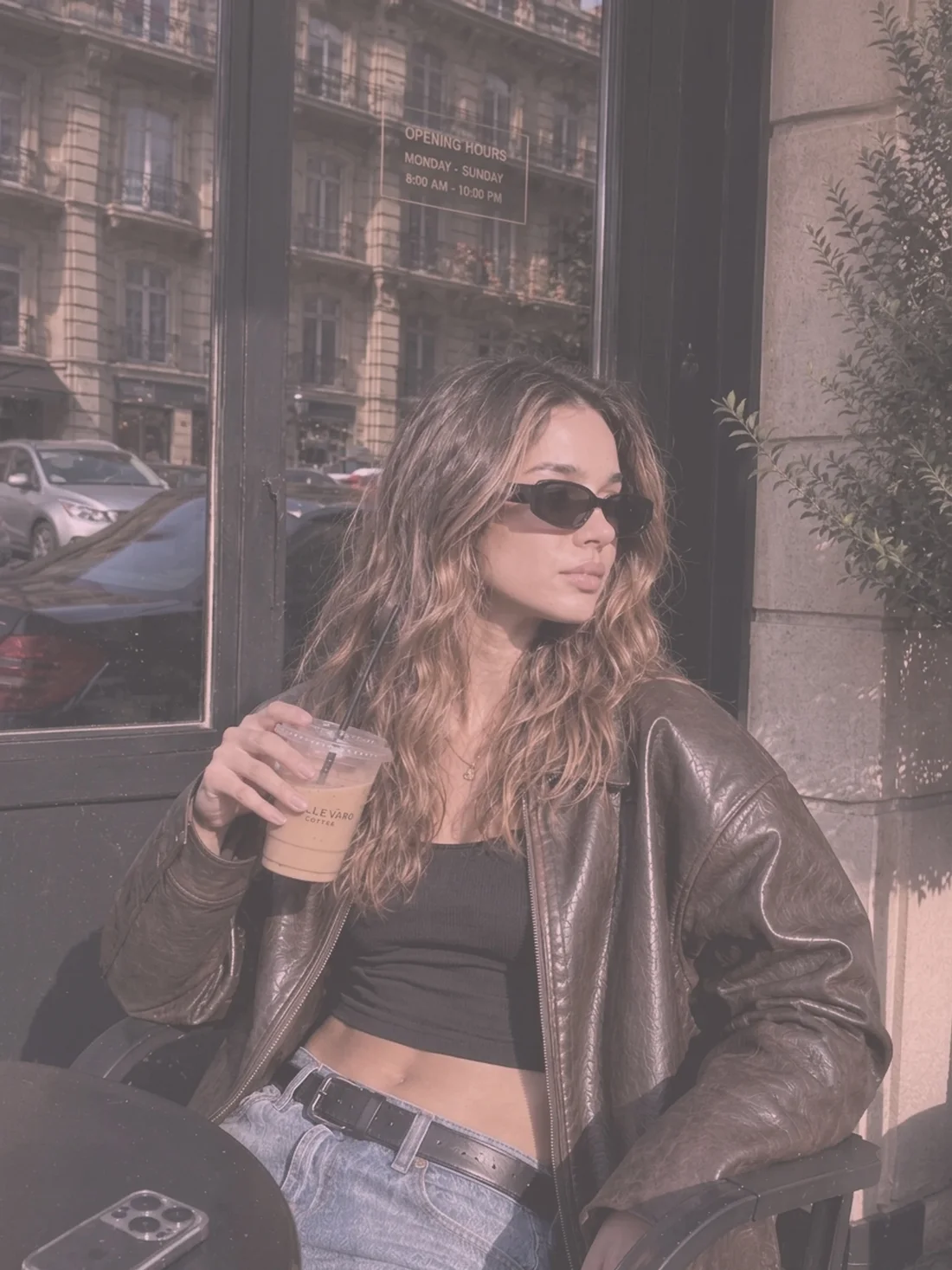

Skin is where a color cast shows first. In the faded scan the face, hair and jacket all lean pink and the whole picture looks hazy.
The corrected photo has natural skin, a dark brown leather jacket and deep shadows, with the warm sunlight left in. The face is not retouched or redrawn, so it is exactly the person in the scan.
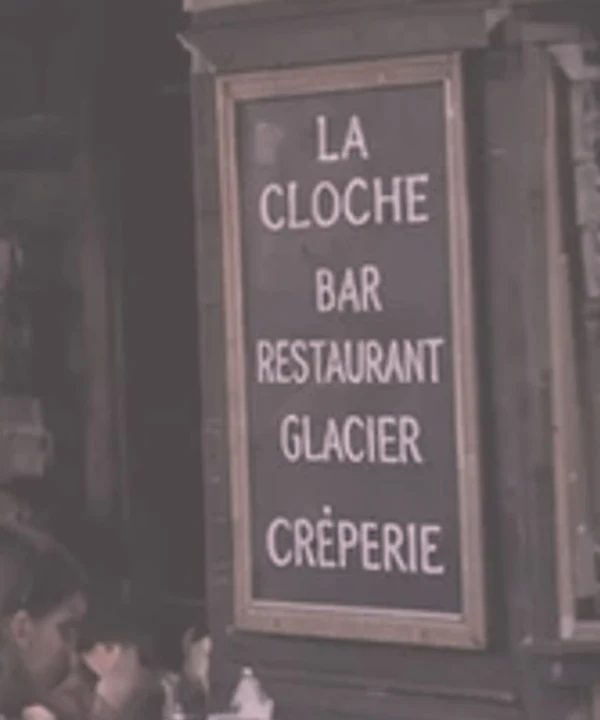
Most AI photo restorers regenerate the whole picture, usually at a lower resolution. That fixes color, but small letters and faces come back slightly different. Here the AI only decides the colors, and your scan keeps its own pixels. Below is the same sign from the street scene, cropped at full resolution.
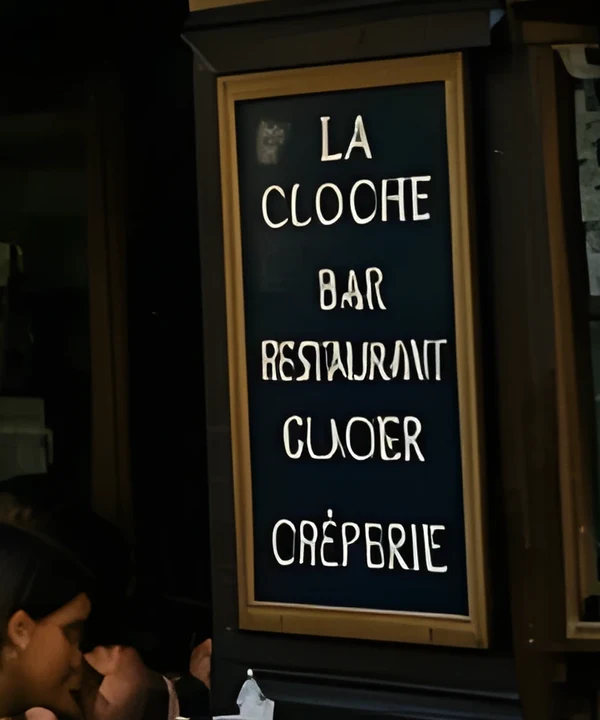
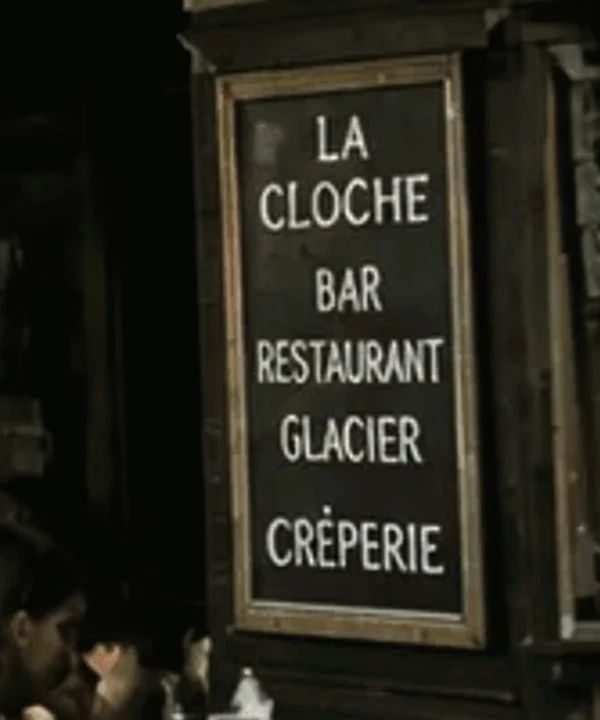
Your browser sends a small copy of each photo, about 1 megapixel, to an AI image model. It returns the copy with blacks, contrast and color restored. From the two copies, the tool learns which color each original color should become, and applies that to your full-resolution file.
The full-resolution scans are read and corrected inside your browser and are never uploaded. Only the small copies reach our servers, and uploaded copies are deleted within 3 days.
sparkpix.ai Batch Photo Color Correction is a browser-based tool that restores color and contrast on faded photo and slide scans, up to 50 at a time. An AI model decides the corrected colors for every photo, and the correction is applied to your full-resolution scan, which keeps its exact pixel size and content. It costs 3 credits per photo. It does not remove dust or scratches, sharpen blur or add color to black-and-white photos.
| Batch color correction (here) | Lightroom or Photoshop auto / presets | One-at-a-time AI photo restorers | |
|---|---|---|---|
| What changes | Color and contrast only; every pixel stays where it was | Whatever the preset or action does, the same for every photo | The whole photo is regenerated by an AI model |
| Each photo judged on its own | Yes, the AI looks at every photo | Auto tone and color, yes; presets, no | Yes |
| Resolution | Same as your scan | Same as your scan | Often reduced, then upscaled |
| Text, faces, grain | Exactly as scanned | Exactly as scanned | Can be altered, as in the sign above |
| Effort for 500 slides | Ten batches of 50 | Fast once tuned; strong casts often need per-photo fixes | One upload at a time |
| Cost | 3 credits a photo | Software subscription | Varies |
If you already use Lightroom and your scans fade evenly, a preset is the cheapest option. Scanner software color restoration (offered by Epson Scan and VueScan, for example) only works while you scan; this tool works on scans you already have.
Drop up to 50 JPG, PNG or WebP files into the box. There is no file size limit, because the full-resolution files never leave your computer.
The batch costs 3 credits a photo, shown on the button before you press it. Photos that fail are refunded automatically.
A small copy of each photo, about 1 megapixel, goes to the AI, which brings back blacks, contrast and true color. 4 photos run at once; each usually takes 20 to 60 seconds.
The restored colors are applied to your original file in the browser, so each result has exactly the pixel size of your scan. Download them one by one or as a ZIP.
Every photo uses 3 credits, whatever its size. Credits do not expire, and photos that fail are refunded automatically, so you only pay for corrected photos.
| Credits | Photos | Enough for |
|---|---|---|
| 5 free credits (new account) | 1 photo | Try it on one scan first |
| $9.99 · 350 credits | 116 photos | One box of slides |
| $29.99 · 1,200 credits | 400 photos (520 with the first-purchase bonus) | A 500-slide collection |
| $59.99 · 3,000 credits | 1000 photos (1300 with the first-purchase bonus) | A large family archive |
The first-purchase bonus adds 30% to your first Pro or Premium pack. See all options on the pricing page.
Boxes of 35mm Kodachrome and Ektachrome slides that scan pink, cyan or washed-out, where nobody has time to color-correct hundreds of photos by hand.
Prints from the 1960s to 1990s fade in the same way: the colors drift and the blacks go gray. A flatbed scan of an album page works as well as a slide.
A collection needs consistent, natural color without the images being altered. Here the content of every scan stays exactly as captured.
Your own slides and negatives from before digital, back to the color you remember, at the full resolution of your scanner.
Black-and-white photos. There is no color to restore; use the Colorize Photo tool to add color.
Dust, scratches, tears and water stains. Only color and contrast change; damage stays. Use Remove Scratches or Restore Torn Photos for those.
Blur and focus. A soft scan stays exactly as sharp as it is.
TIFF files. Browsers cannot open most TIFFs; save a high-quality JPG from your scanner software first.
Fixing one area only. The correction applies to the whole photo; it does not, for example, brighten just a face.
The correction keeps whatever resolution you give it, so scan at the highest setting you would want to keep. Nothing is lost by the correction itself.
Results download with “-restored” added to the file name. Keep the untouched scans as your archive copy; you can always correct them again.
Results are saved as JPG at 95% quality, or PNG if your scan was PNG. If your scanner software offers TIFF only, export a JPG copy for this tool.
Use your scanner’s dust removal (such as Digital ICE) or clean the slides before scanning. This tool does not remove dust spots.
Every photo is judged on its own, so a batch can mix rolls, years and film types. Grouping by roll just makes the results easier to file.
Results are kept in your browser tab until you download them. The ZIP button saves the whole batch at once.
3 credits per photo. A 500-slide collection needs 1,500 credits: the $29.99 pack has 1,200 credits, or 1,560 on your first purchase with the 30% first-purchase bonus, which covers all 500. New accounts get 5 free credits, enough to try one photo. If a photo fails, its credits are returned automatically.
Up to 50 photos per batch, with 4 processed at the same time. Each photo usually takes 20 to 60 seconds. For a larger collection, run several batches one after another; there is no daily limit.
No. Each result has exactly the same width and height in pixels as the file you uploaded. Scans do not need upscaling for this; only color and contrast change.
No. Your browser makes a small copy of each photo, about 1 megapixel, and only that copy is uploaded to the AI. The restored colors are then applied to your original file on your own computer. Uploaded copies are deleted within 3 days.
No. The AI only decides what the colors should be. Every pixel of your scan stays in place and only changes color, so faces, signs, handwriting and film grain are exactly as they were scanned. Tools that regenerate the whole photo can alter small letters and faces, as the sign example on this page shows.
Faded prints, yes: they fade the same way slides do, with color casts and gray blacks. Negatives must be converted to positive images first, which scanner software does when you choose the negative film setting.
It can only restore color that is already there, so a black-and-white photo stays black and white. To add color to a black-and-white photo, use the Colorize Photo tool.
Auto tone and auto color in Lightroom or Photoshop work well on many scans, and a preset can run on hundreds of files. Faded slides are harder because each one drifts differently, so presets tend to need per-photo fixing. This tool judges every photo on its own, at no software subscription.
JPG, PNG and WebP, at any size your browser can open. TIFF is not supported by most browsers; save a JPG copy first. Results are JPG at 95% quality, or PNG when the input was PNG.
New accounts get 5 free credits, enough to correct one photo and compare it with your original before you run a whole box of slides.
One badly damaged photo that needs more than color: AI restoration of a single image.
Remove the yellow tint of aged prints on a single photo.
Add natural color to black-and-white photos.
Remove scratches, dust and stains from an old photo.
Make up to 20 small photos larger in one batch.
Repair torn, creased and water-damaged photos.
Repair, colorize and restore old photos with AI.
Bring damaged, faded, or torn photos back to life.
Fix scratches, creases, water damage, and yellowing.