
FREE
Loading…
Add a person to a photo they were never in. Upload the photo, upload the person, say where they stand, and the AI matches the light, scale and shadows so it looks like they were there all along.
Last updated:
Six real results from this tool. The left image is the original with the photo of the person to add in the corner; the right image is what came back, unretouched. The line in quotes is exactly what was typed into the editor.
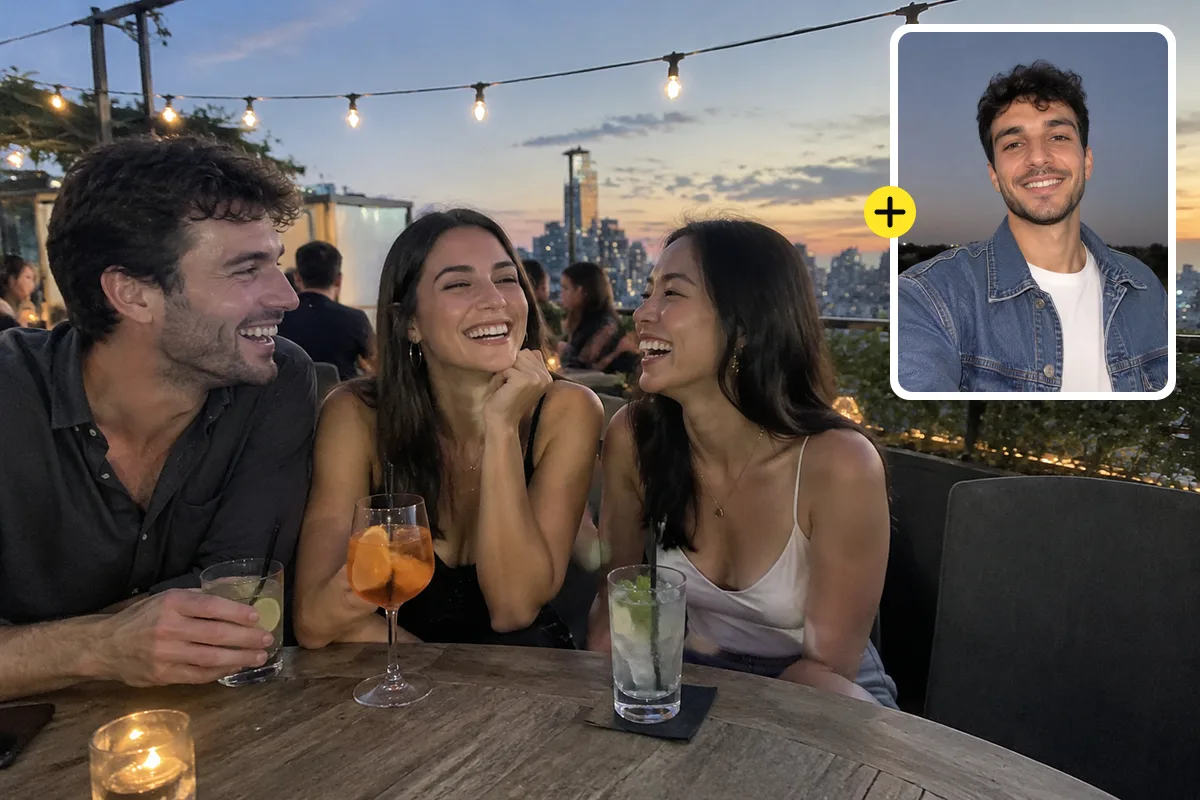
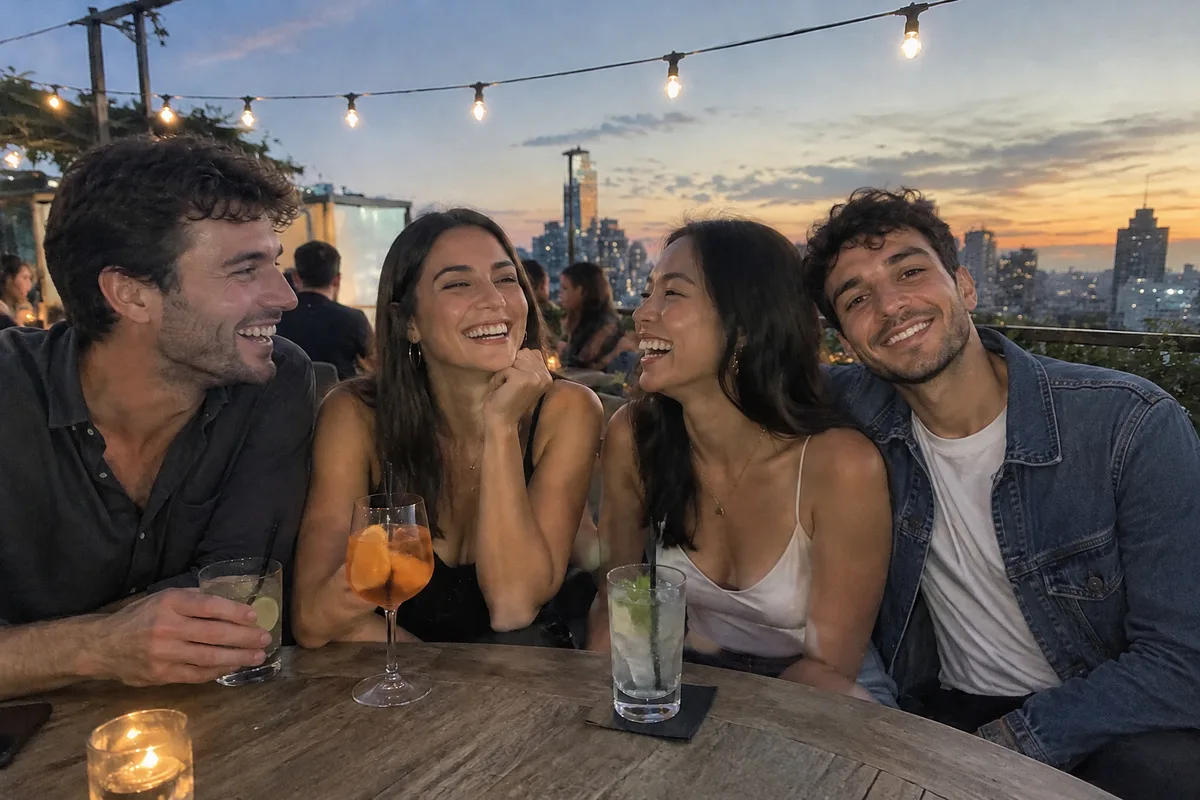
Every group of friends has one person who is never in the photos, because they are always the one holding the phone. Here three friends at a rooftop bar are joined by the fourth, taken from a casual evening selfie.
The AI placed him in the empty seat on the right, turned him towards the group and gave him the warm string-light glow and dusk sky reflections the others already have. The three original faces, drinks and table stay as they were, which you can check side by side with the original.
Typed into the editor
“Place him in the empty spot on the right, standing close to the group with one arm around the friend next to him, laughing with them.”
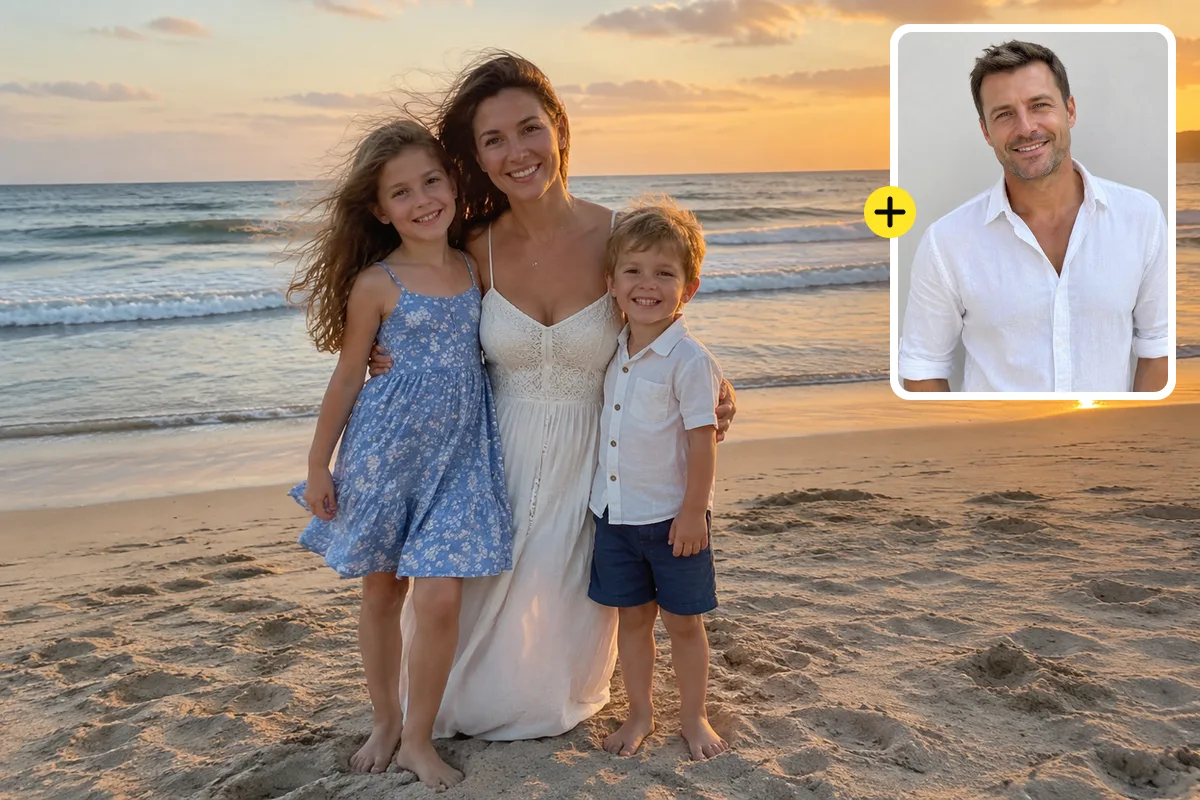
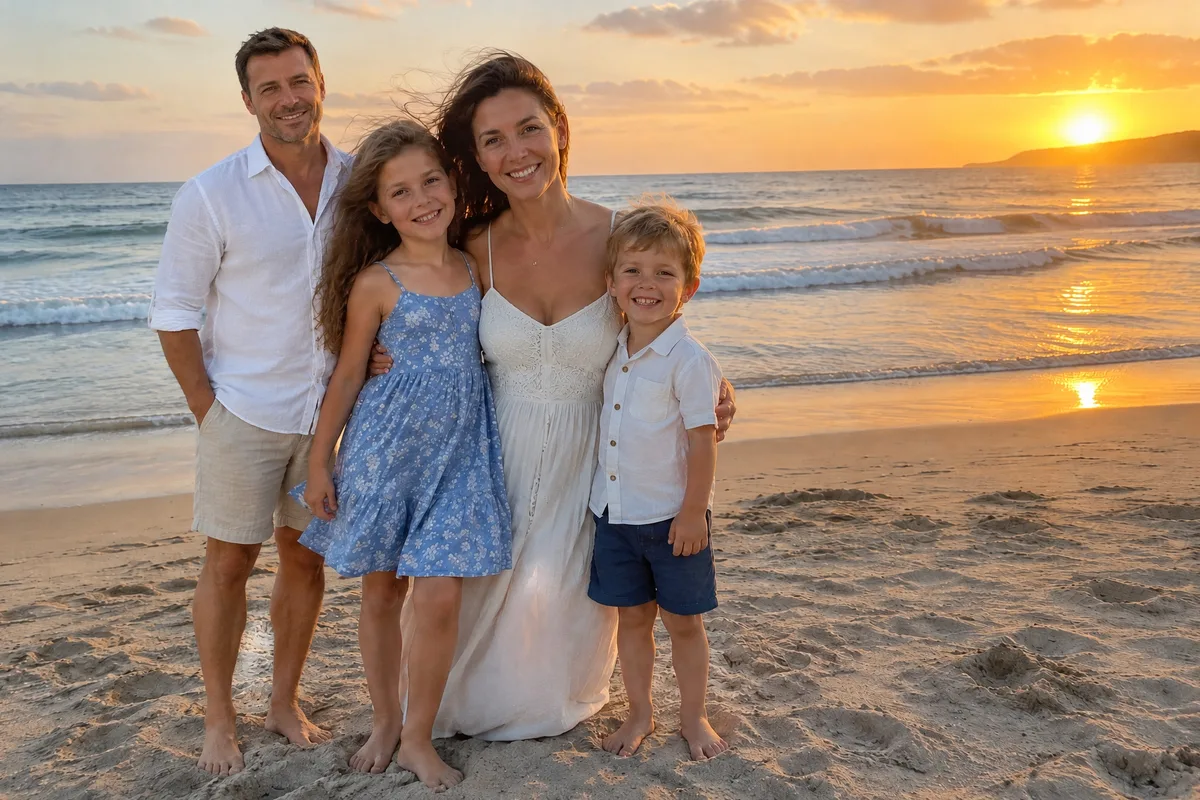
In most family holiday photos one parent is missing, because someone has to take them. This beach shot at sunset had a mother and two children; the father was added from a plain photo against a white wall.
The hard part is the light. The source photo is flat indoor daylight, the beach is low golden sun from the right. The AI relit him with the same warm rim light and long shadow on the sand, made him barefoot like the others and scaled him to stand at the same distance from the camera.
Typed into the editor
“Place him standing beside the mother on the left, one hand on the girl's shoulder, barefoot on the sand like the others.”
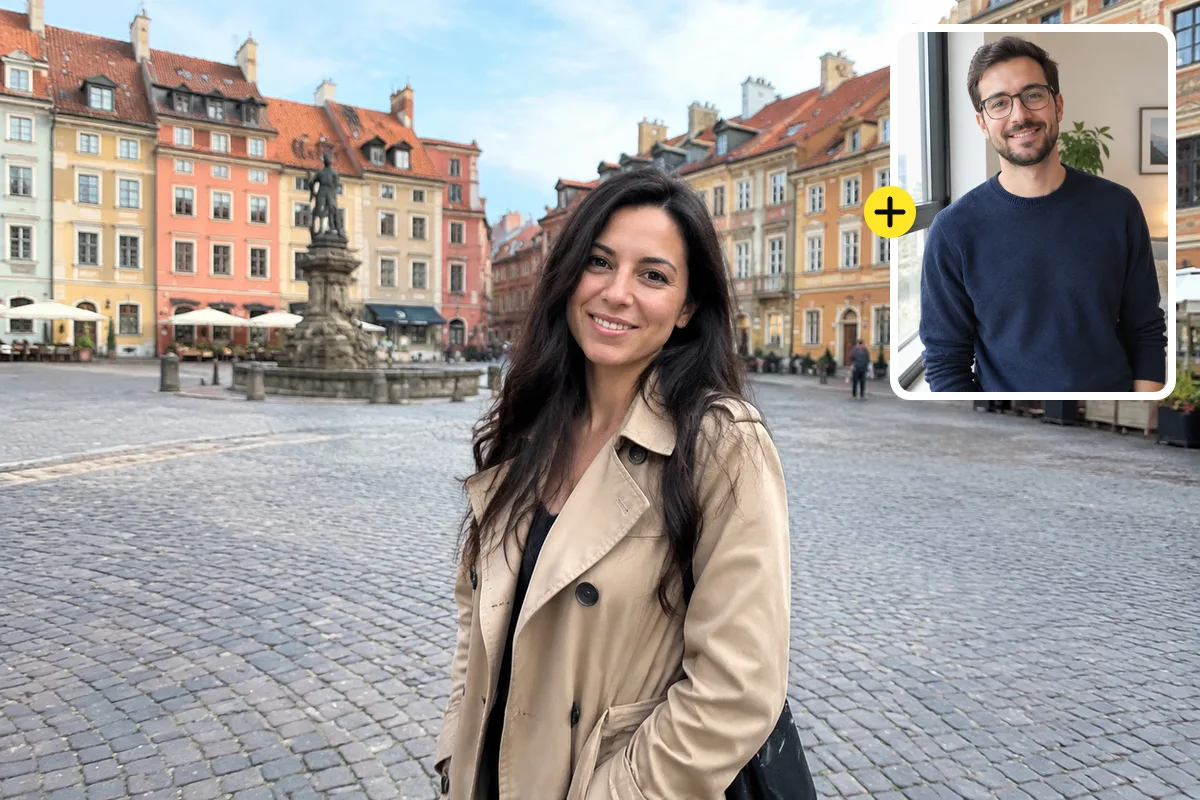
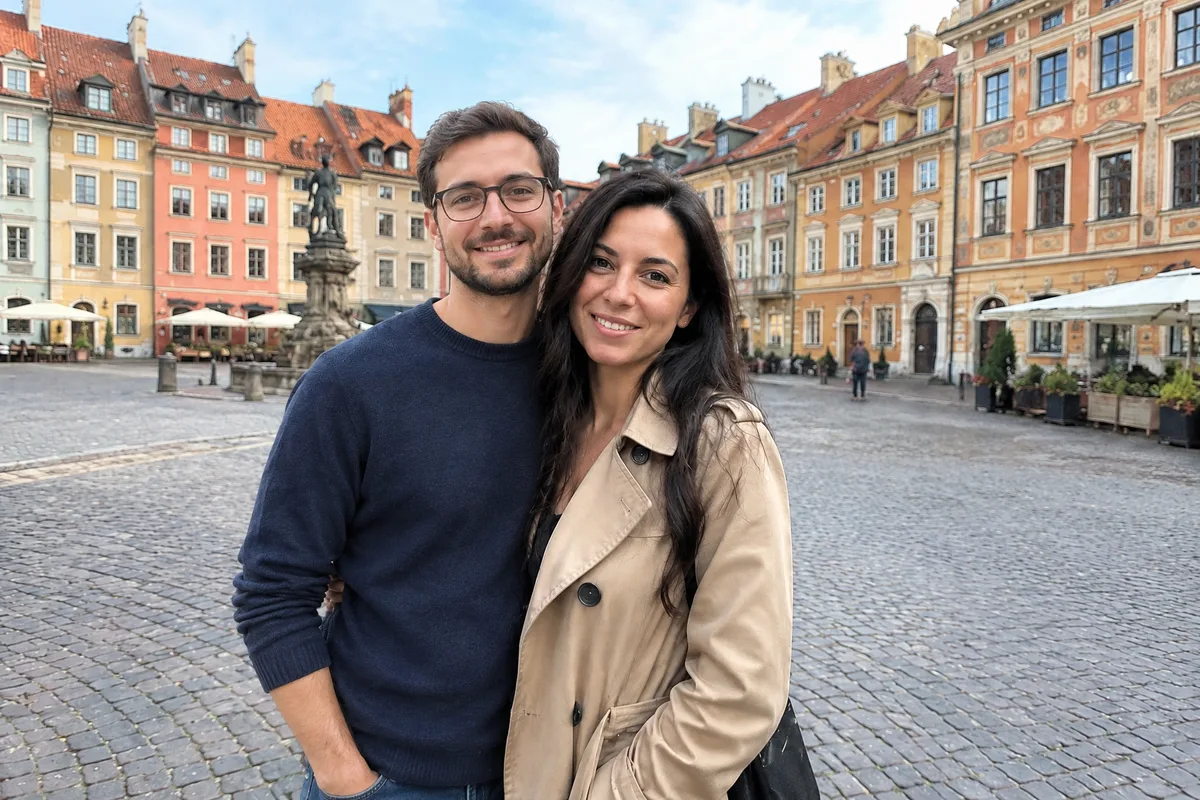
When two people travel together, one of them ends up in all the photos alone. This old-town square shot was taken by her partner; he was added from a photo taken at home by a window.
His sweater and glasses come straight from his photo, but his posture changed: he stands beside her with an arm around her waist and the overcast daylight of the square on his face. The fountain, the buildings and the people in the background stay exactly where they were.
Typed into the editor
“Place him next to her in the square with his arm around her waist, both smiling at the camera, as a couple travel photo.”
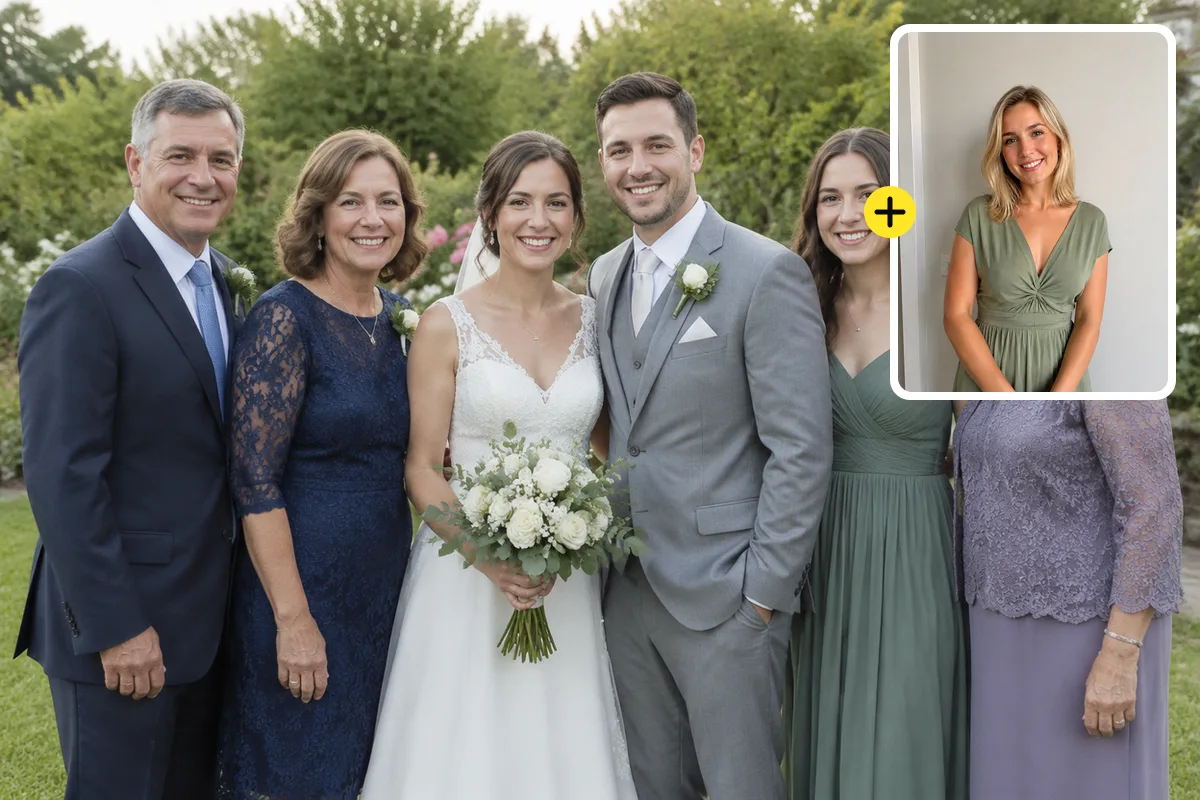
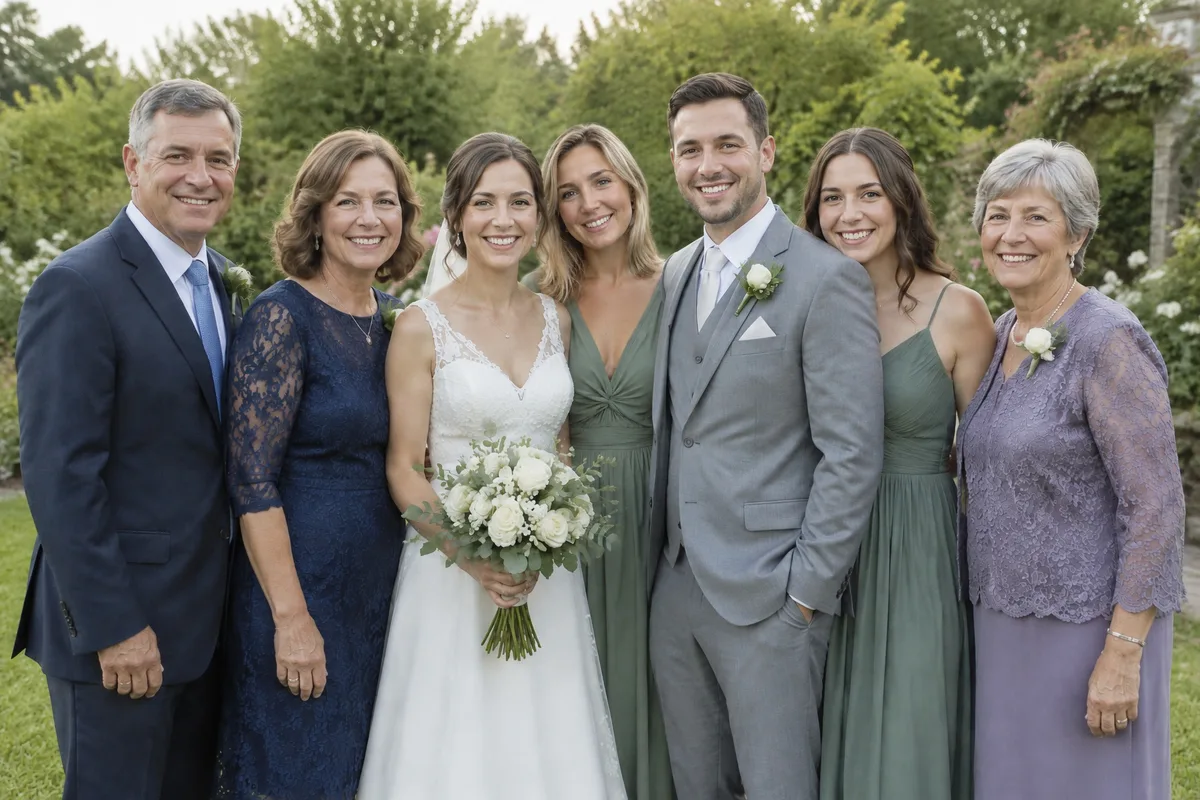
Someone always misses the wedding group photo: a flight was cancelled, a baby was due, or they simply could not travel. Here the bride’s sister is added to a garden group of six from an ordinary indoor portrait.
Seven people in a tight group is a harder case than one person beside another, because the new person has to fit between existing shoulders without anyone shifting. The original six kept their places; she stands just behind the bride, in the same soft afternoon light and at the same depth of focus.
Typed into the editor
“Place her in the group next to the bride, standing slightly behind the bride’s shoulder, smiling like the rest of the family.”
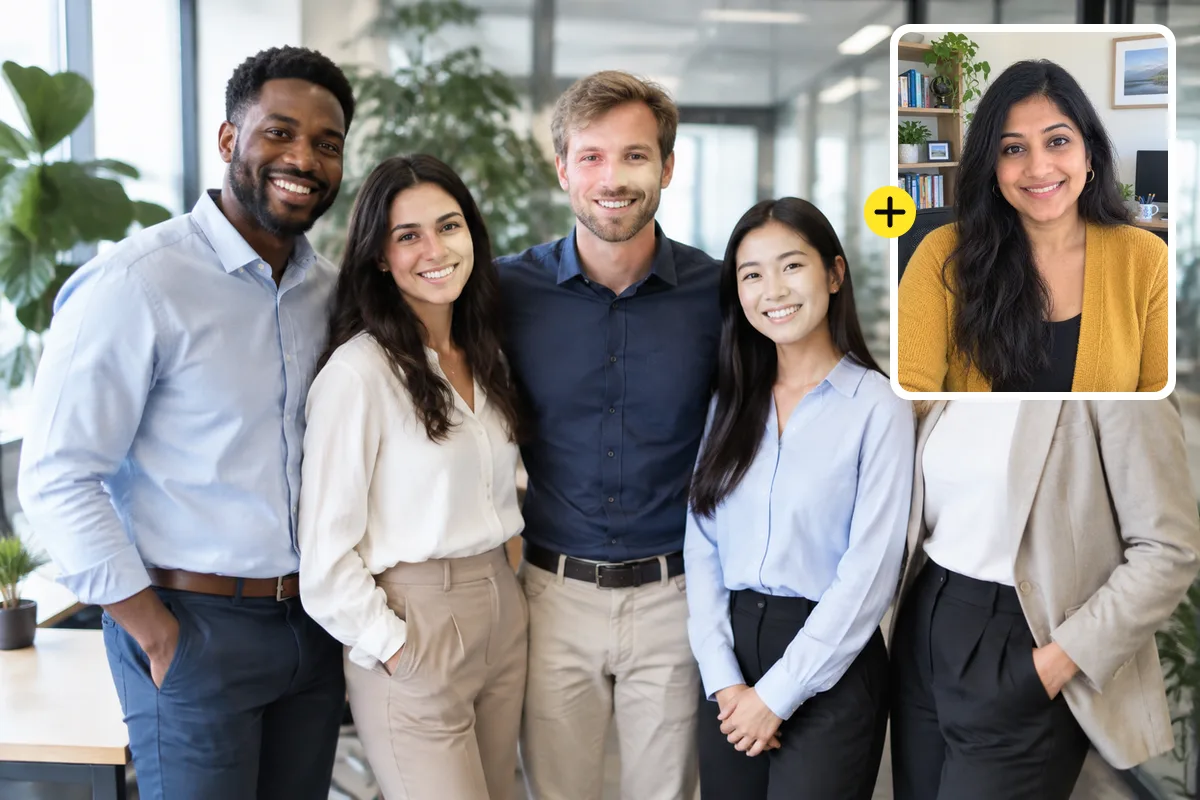

Team photos for an About page are taken on the one day everyone is in the office, and the remote colleague is never there. She was added from a webcam-style headshot taken in her home office.
A headshot only shows head and shoulders, so the AI has to invent the rest of her: it kept her face, hair and mustard cardigan and completed her in work trousers that match the dress code of the others. Nobody in the original five moved, and the glass walls and plants behind them are unchanged.
Typed into the editor
“Place her at the far right end of the group, next to the woman in the beige blazer, in business casual clothes that fit the office, smiling at the camera.”
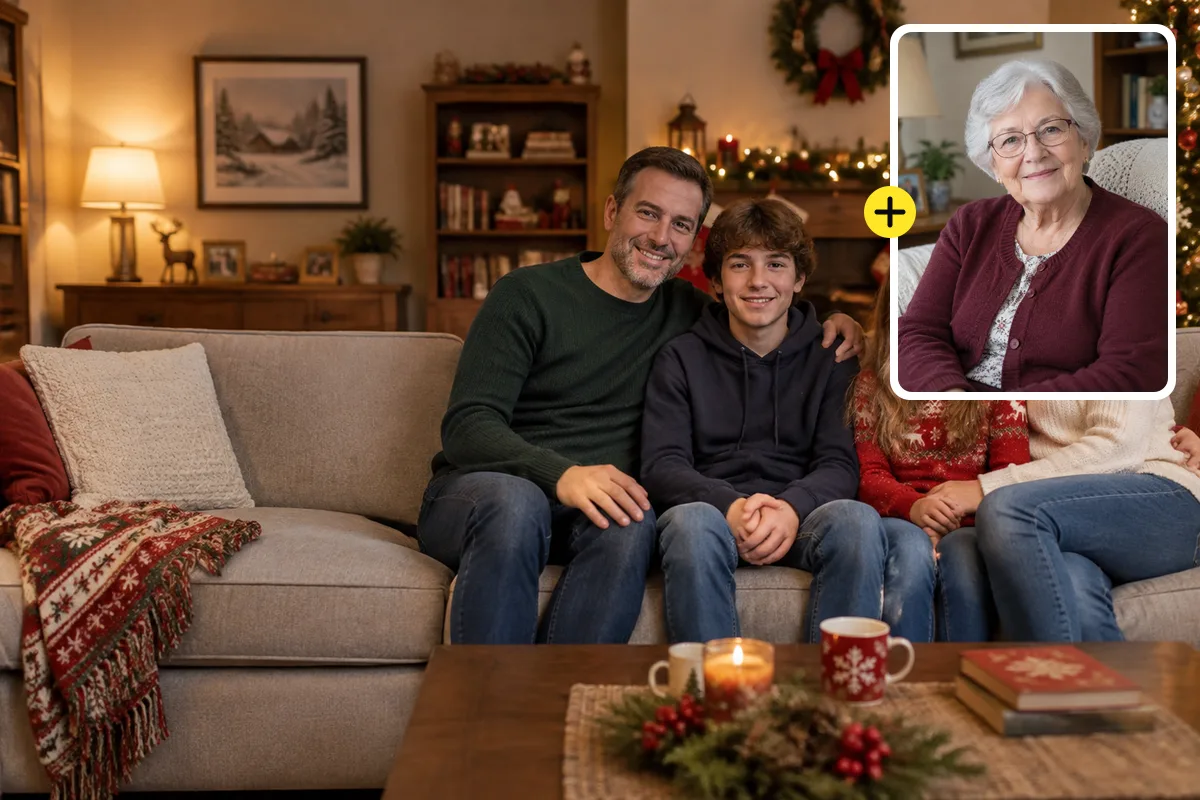
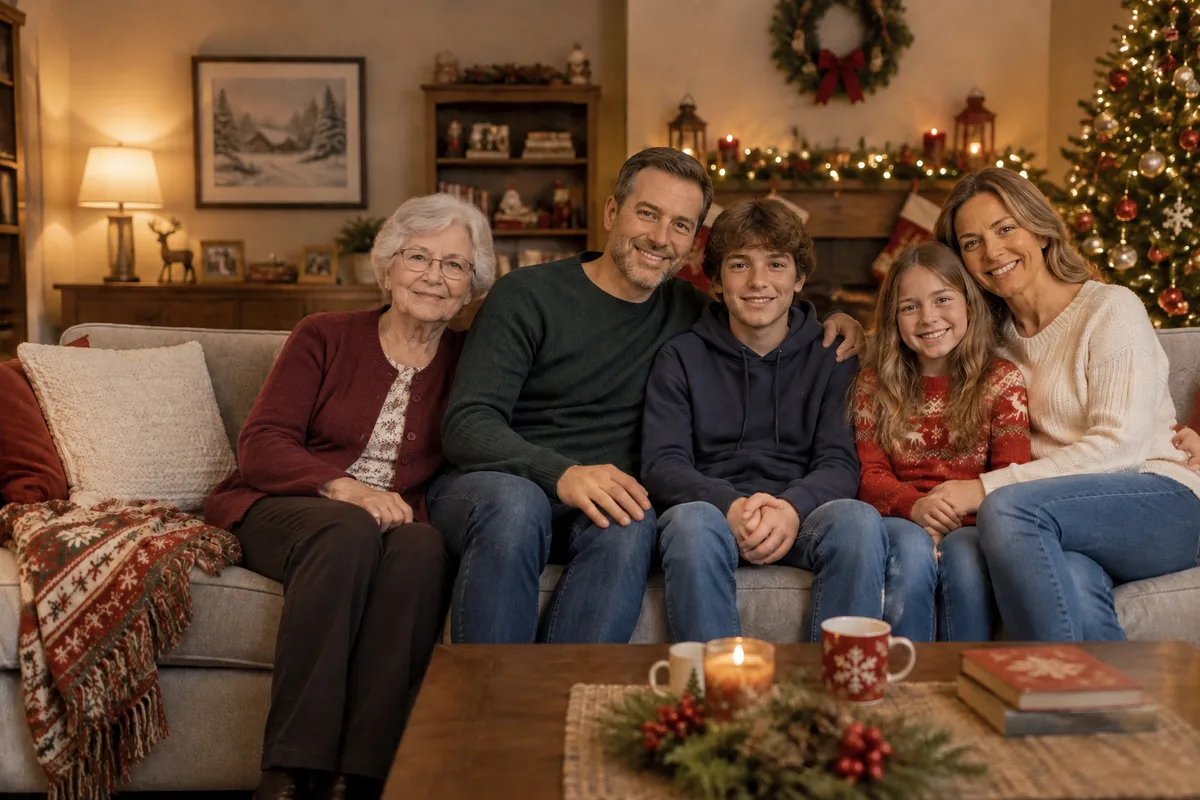
Grandparents are often the ones who could not make the trip. This Christmas living-room portrait gains the grandmother, added from a separate photo of her sitting in her own home.
Seated subjects are where pasted cut-outs look worst, because the body has to sink into the cushion and the lamp light has to fall on them from the right side. She sits at the end of the sofa beside her son, in the same warm lamp light as the family, and no one else on the sofa moved.
Typed into the editor
“Seat her at the left end of the sofa, beside the father, smiling at the camera.”
sparkpix.ai Add Person to Photo is a browser-based AI tool that adds someone to an existing photo from a separate picture of them. You upload the photo and the person, write where they should stand, and the AI generates a new image in about a minute with the lighting, scale, perspective and shadows matched, while everyone already in the photo stays the same. Your first photo is free with the sign-up credits. It does not work for adding public figures, and it cannot rebuild a face from a photo where the person is tiny or blurred.
| AI add person (here) | Pixel Add Me | Photoshop by hand | Cut-out and paste apps | |
|---|---|---|---|---|
| Works on a photo you already have | Yes | No, only at the moment you shoot | Yes | Yes |
| Person does not need to be there | Yes, any photo of them | No, both must be present | Yes | Yes |
| Matches light, shadow and scale | Automatically | Yes, same scene | By hand | No, you resize a cut-out |
| Changes the pose to fit | Yes, from your words | No | Only with heavy skill | No |
| Time per photo | About a minute | Seconds | 30 minutes to hours | A few minutes |
| Cost | 5 credits; first photo free | Needs a Pixel 9 or later | Subscription plus skill | Usually free |
To add a person to a photo you need two pictures: the photo you want to change and any clear photo of the person. Everything else, from cutting them out to matching the light, is done for you.
This is Photo 1: the group, family, wedding or travel photo. Use the largest version you have. Screenshots and WhatsApp copies work, but a full-resolution file gives the AI more to work with.
This is Photo 2. A clear photo with the face visible and lit evenly works best. Head and shoulders is enough; the AI completes the body. To add several people, upload one photo per person, up to four.
Pick a placement chip or write one line: "next to the bride", "seated at the end of the sofa", "arm around her waist". You only describe position and pose. Matching the light, scale and shadows is built in.
In about a minute you get the new photo. Compare faces with the original, re-run with a different placement if you want, then download the full-size image.
The iPhone Photos app can remove things with Clean Up, but it has no way to add someone to a photo. Open this page in Safari, tap the upload box, choose the group photo first and the photo of the person second from your camera roll, then generate. The finished image downloads to Files or Photos like any other picture.
Pixel 9 and later phones have Add Me, which only works while you are taking the photo: you take one shot, swap with the photographer and take a second. To add someone to a photo you already have, or someone who was not there, use this page in Chrome the same way as on a computer.
People add a person to a photo almost always because one person should have been there. These are the situations it is used for most, each one shown in the examples above or done the same way.
Add the friend who took the picture, arrived late or left early. The most common reason people add someone to a photo.
One parent takes every holiday photo and is in none of them. Add them from any other photo taken on the trip.
Turn a solo travel shot into a photo of the two of you, or add a partner to an event photo they missed.
Add the sibling, grandparent or friend who could not travel, so the group photo has everyone in it.
Add remote colleagues and new hires to the team photo instead of reshooting it for one person.
Add relatives who spent the holiday elsewhere, or combine two halves of a family reunion into one picture.
Add a parent who was deployed, working or abroad to the graduation or first-day photo.
Two people photographed separately, one picture together. Use the photo with the better background as Photo 1 and add the other person to that photo.
Families also add a parent or grandparent who has passed away to a wedding or new-baby photo. It works the same way; a dedicated guide for memorial photos is coming.
When you add a person to a photo, the result looks fake for four reasons: the light comes from the wrong side, they are the wrong size for where they stand, there is no shadow where they touch the ground, or their edges look cut out. The tool handles all four, and these choices make its job easier.
An empty seat, a gap at the end of the row or space beside someone gives the AI somewhere natural to put the new person. A tightly packed group can still work, but people may be nudged.
The face must be visible, sharp and not covered by sunglasses or a hand. If the face is only a small blur in the photo, the AI has too little to keep the identity and will partly invent it.
A person photographed from eye level fits best into a photo shot from eye level. The AI can turn a pose, but a photo taken from far above is harder to match.
Name a person or object: "beside the woman in the beige blazer", "at the left end of the sofa". Vague placements like "somewhere" give the AI a free hand.
If the scene has a dress code (a wedding, an office, a beach), say so. The AI keeps the face and hair from the person’s photo and adapts clothes only when asked or needed.
The tool is told the result must have exactly one more person per added photo. If someone looks different or is missing, re-run; it is rare, but it is the thing to check.
Putting someone into a picture by hand is a five-step Photoshop job. Each row below is a step a retoucher does manually and what happens to it here.
| Step | In Photoshop | With AI here |
|---|---|---|
| Cut out the person | Select Subject, refine hair edges, mask | Not needed: upload the photo as it is |
| Match size and perspective | Free Transform against the other people’s height | Done from the depth of the scene |
| Match light and colour | Curves, Color Balance, Match Color, dodge and burn | Done in the same pass |
| Shadows and contact | Paint a shadow on a new layer | Generated where they stand or sit |
| Change the pose | Not realistically possible | Describe it: arm around, seated, turned |
| Typical time | 30 minutes to several hours | About a minute |
Photoshop still wins when you need pixel-level control over a composite for print or advertising. For adding a person to a family or group photo, the AI result is usually done in one try.
Adding family, friends, partners and colleagues who agreed to it
Group, family, wedding, team and holiday photos
People photographed on a phone, a webcam or an old print
Adding one to four people to a photo at once
Celebrities and public figures, or anyone who did not agree to it
Documents, ID photos, evidence or anything presented as an unedited record
Faces only a few pixels wide: the AI would have to invent the face
Intimate or compromising scenes with a real person: refused under our content policy
Upload the photo you want to change, then a photo of the person to add, and write where they should stand, for example "next to the bride". The AI places them, matches the lighting, scale and shadows, and returns a new image in about a minute. You do not need Photoshop or any editing skill.
Yes, your first one is free. Adding a person to a photo costs 5 credits, and every new account gets 5 free credits on sign-up. After that, credit packs start at $9.99, or a monthly plan if you edit often. Results have no watermark.
Open this page in Safari or Chrome on your phone and upload both photos from your camera roll; it works the same as on a computer. Apple Photos can remove objects with Clean Up but has no tool to add someone, and Google Pixel’s Add Me only works while you are taking the photo, with both people present.
Add Me on Pixel 9 and later merges two shots you take one after the other, so the photographer can swap in. It cannot add a person to a photo you already have, or anyone who is not there. This tool works on any existing photo and any person you have a picture of.
Yes. Upload the base photo first, then one photo per person, up to four people in one go. Say where each one goes, for example "the man on the left end, the woman next to the bride".
They should not. When you add someone to a photo here, the AI is instructed to keep everyone in the original photo with the same face, clothing, position and expression and to add exactly the number of people you uploaded. Compare the result with your original before you share it, and re-run if anything shifted.
Yes. Many families add a late parent or grandparent to a wedding, graduation or new-baby photo. Use the clearest photo you have of them; an old print can be restored first with the photo restoration tool so the face is sharp enough to keep.
No. This tool is for adding people you know, with their permission. Putting a public figure or any real person into a photo they were never in, and presenting it as real, can violate their image rights and our content policy.
Uploaded photos are deleted within 3 days. The results you create are saved to your account so you can download them again; you can remove them from your history at any time.
Yes, that is what this tool does. The manual Photoshop workflow (cut out, resize, match colour, paint shadows) takes from half an hour to several hours. Here you upload two photos and describe the placement, and the AI does all of those steps in one pass.
Two photos and one sentence is all it takes to add a person to a photo. Add the friend, parent, partner or colleague who was missing, and get a picture that looks like everyone was there.
About a minute
First photo free
The opposite job: erase a stranger or an ex from a picture.
Add sunglasses, hats, props and decorations instead of people.
Move the whole group to a studio, beach or city backdrop.
Fix closed eyes or turn someone towards the camera.
Repair an old photo of the person before you add them.
Any other edit, described in your own words.
Add, remove and change anything in a photo by describing it.
Erase any unwanted object from a photo in one click.
Take out tourists, strangers, or anyone you don’t want.
Clear text, watermarks, emojis, and date stamps.
Erase clutter, power lines, fences, reflections, shadows.
Remove or replace any background.