
How to Make ChatGPT Images Look Real: Two Fixes Tested on Four Images
How to Make ChatGPT Images Look Real: Two Fixes Tested on Four Images
Last updated: October 21, 2026 · Every image generated and fixed on October 21, 2026 · By the sparkpix.ai Editorial Team
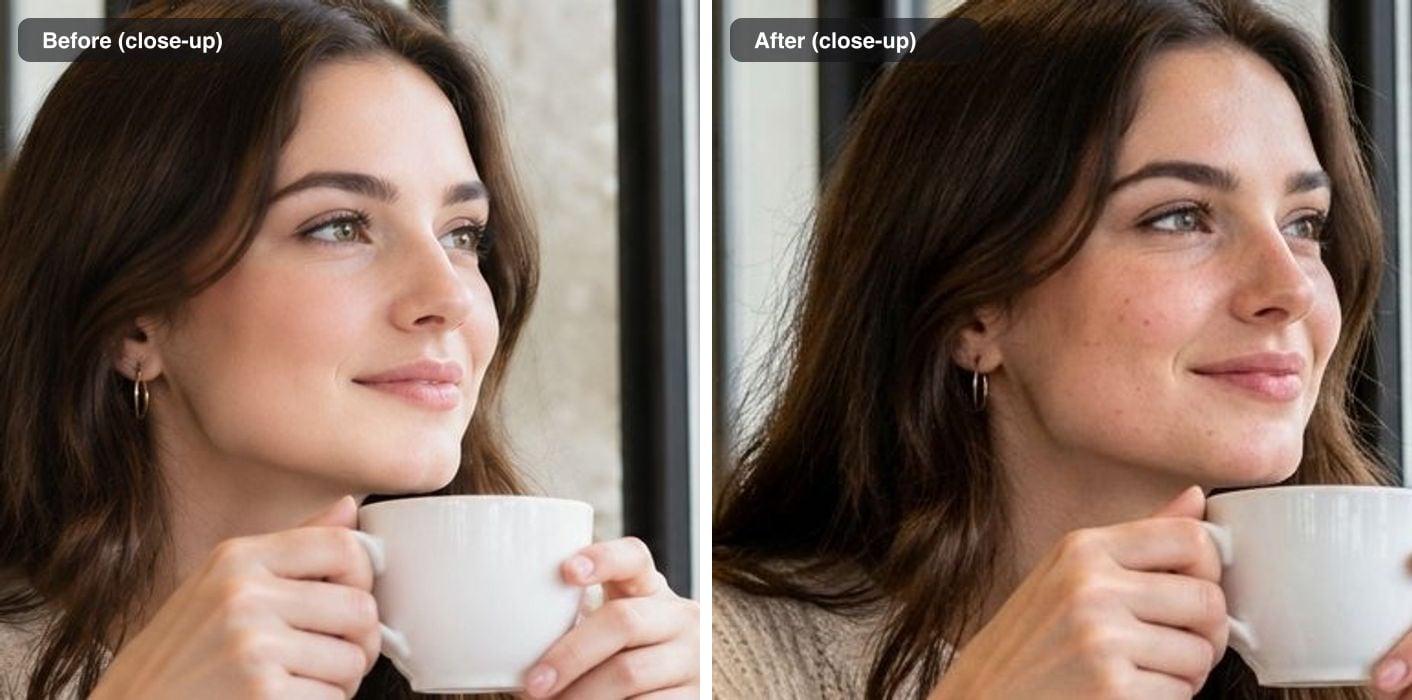
The same ChatGPT-style image before and after a realism pass. Same woman, same pose, same cup; the skin and the background focus changed.
Quick answer: ChatGPT images look fake for two different reasons, and each has its own fix. If the scene looks staged (model-like people, a spotless table, everyone smiling at the same spot), rewrite the prompt as a phone snapshot and generate again; you will get a new image. If you like the image and only the rendering gives it away (airbrushed skin, creamy background blur), run a realism pass, which keeps the person and the composition and re-renders the skin and focus. Most runs took 25 to 45 seconds in our tests.
Which image model ChatGPT uses
ChatGPT's image feature is currently ChatGPT Images 2.5, which OpenAI rolled out on September 8, 2026. The same release added GPT Image 2.5 to the OpenAI API in two tiers, Flare and Sunburst. OpenAI has not said which tier ChatGPT itself uses, so we made our test images with GPT Image 2.5 Flare through the API, at 1K resolution and medium quality. Images from the ChatGPT app may differ a little from ours.
Images made before September 2026 came from ChatGPT Images 2.0, which runs on OpenAI's gpt-image-2 model (launched in April 2026). Both fixes below work the same way on those images.
What gives ChatGPT images away
We gave the model four plain prompts, the way most people type them:
- "A photo of a woman sitting by a cafe window drinking coffee"
- "A professional LinkedIn headshot of a man in his 40s wearing a navy blazer"
- "A photo of three friends having dinner at a restaurant"
- "A photo of a homemade lasagna on a kitchen table"
None of the four had a technical error: no extra fingers, no melted objects. They looked fake for these reasons instead:
- Stock-photo casting. Every person looked like a model in an advert: the woman by the window, the man with the perfect jawline, three friends who all look camera-ready.
- Staged moments. The cafe woman holds her cup at her chin and gazes out of the window; the three friends smile at each other over a table set like a catalogue page.
- Airbrushed young skin. The woman in the cafe has no visible pores or redness at all. The man in his 40s did get wrinkles and stubble, so in our test it was the young faces that came out airbrushed.
- Background blur like a studio lens. The office behind the headshot melts into soft blur, which reads as a portrait shoot rather than a photo someone took at work.
- Styled food. The lasagna is evenly orange-red, glossy and perfectly rectangular, with nothing cut or spilled.
The first two are about the scene. The last three are about rendering. That split decides which fix to use.
Fix 1: rewrite the prompt as a snapshot
A realistic prompt describes a snapshot, not a photograph. It answers five questions: who took it and with what, where the light comes from, what imperfection the moment has, what mess is around, and what the skin looks like. Then it rules out retouching and colour grading.
The cafe portrait
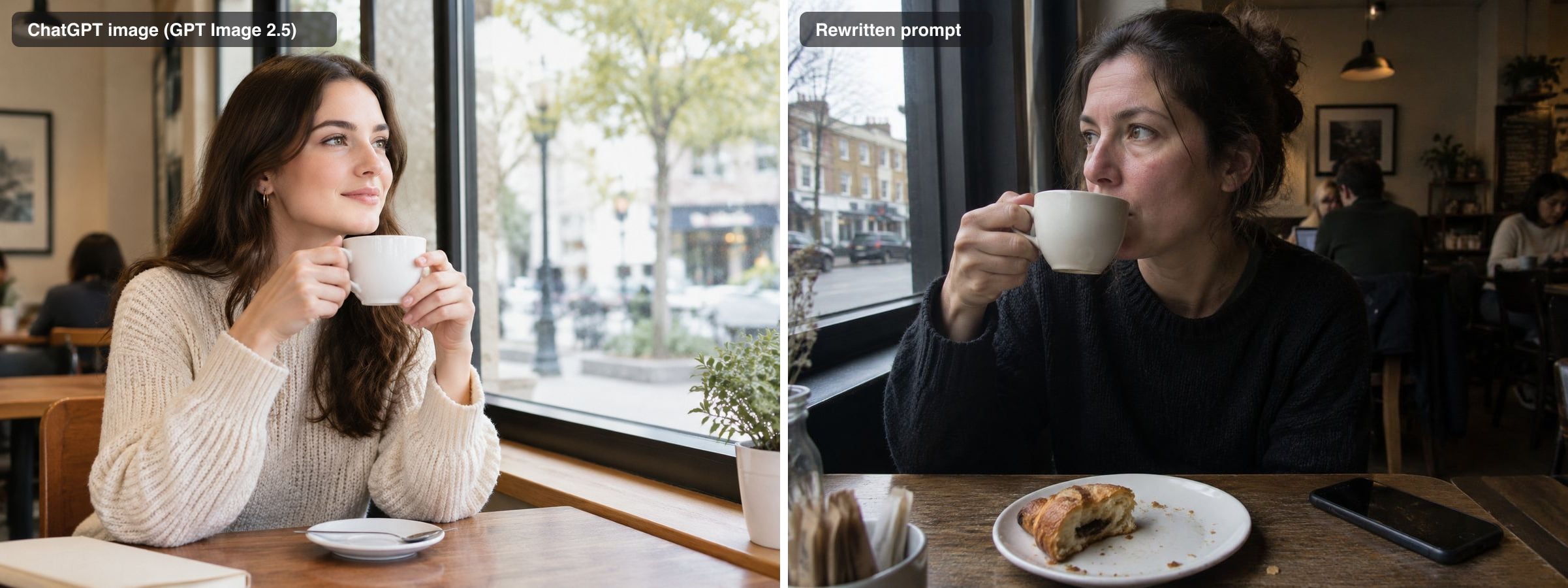
Rewritten prompt: "An unposed iPhone photo of a woman in her 30s sitting by a cafe window drinking coffee, taken from across the table. Overcast daylight from the window is the only light, so the side of her face away from the window falls into shadow. Natural skin with visible pores and a little redness, very little makeup, hair slightly messy. A half-eaten pastry, a phone and crumbs on the table, other customers out of focus. Ordinary phone colours, not colour graded."
What happened: the new image reads like a photo a friend took: real shadow on her face, crumbs, a phone on the table, people working in the background. It is also a different woman in a different cafe. Time: 40 seconds.
The LinkedIn headshot
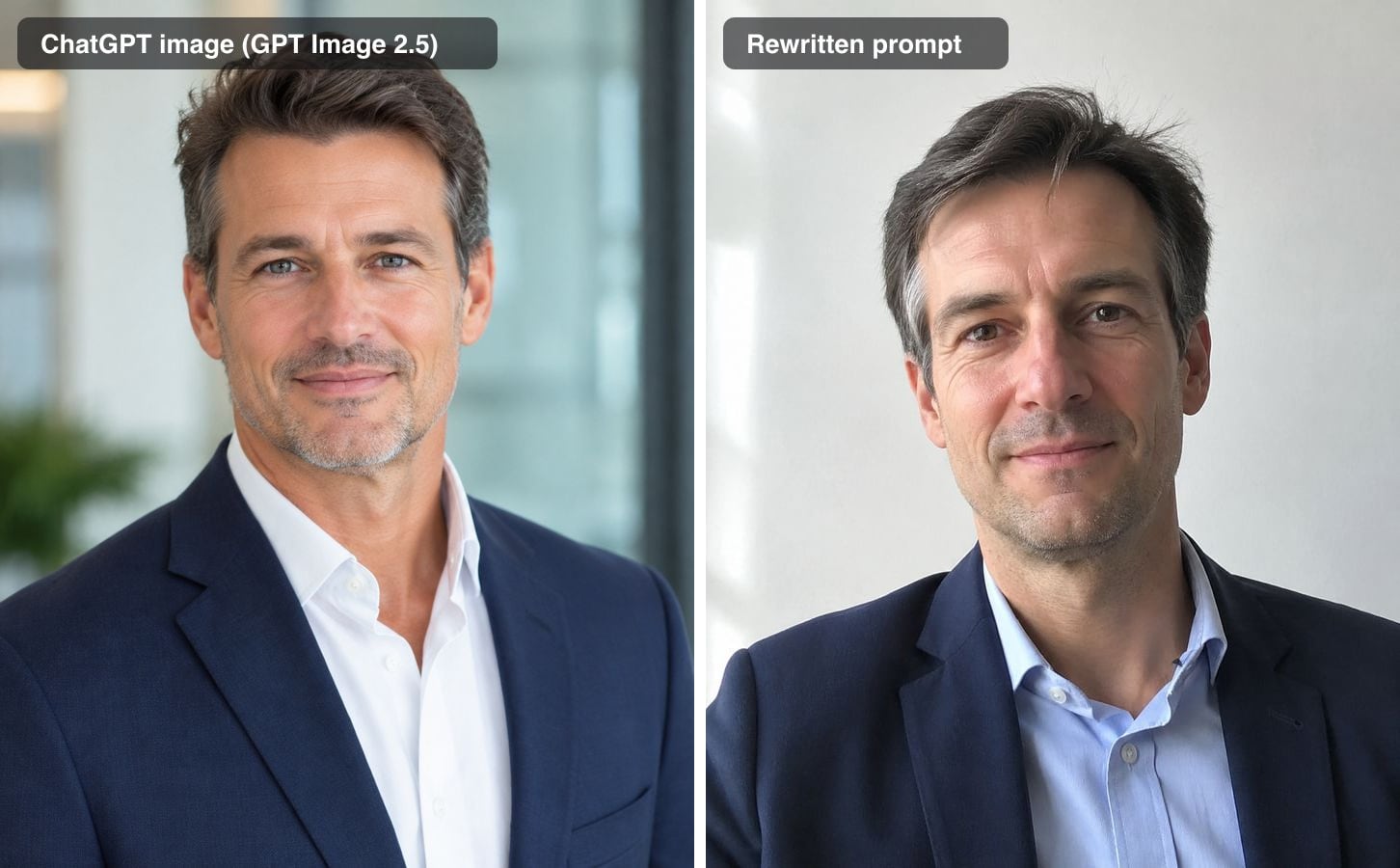
Rewritten prompt: "A headshot of a man in his 40s wearing a navy blazer, taken by a colleague with an iPhone against the plain white wall of an office. Light comes from a window on his left, with a soft shadow on the right side of his face. Real skin texture, a few grey hairs out of place, a slightly crooked shirt collar. Not a stock photo, not retouched."
What happened: the blurred glass office became a white wall in window light, and the man looks like someone from your team rather than from a stock library. If you need a headshot of a specific person, this route does not help: it invents a new face every time. Time: 32 seconds.
Dinner with friends
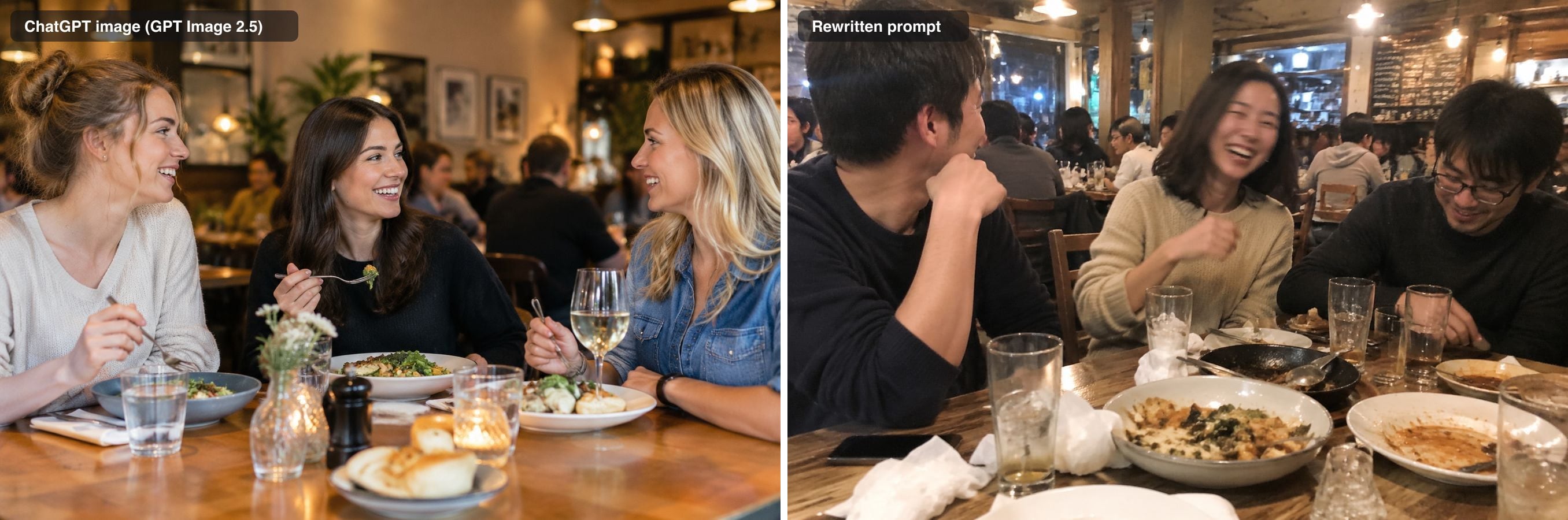
Rewritten prompt: "A phone snapshot of three friends in their 30s having dinner at a busy neighbourhood restaurant, taken by a fourth friend across the table. Warm overhead bulbs, a little motion blur on the one who is laughing, one person half turned away. Half-empty glasses, used napkins and shared plates on the table. Real skin texture, ordinary clothes, nobody posing, no colour grading."
What happened: this is the most convincing of the four: crumpled napkins, a half-eaten dish, one friend with his back to the camera. Note that all three people changed completely, including their ethnicity, because the prompt did not say who they were. If who is in the picture matters, describe them. Time: 34 seconds.
The lasagna
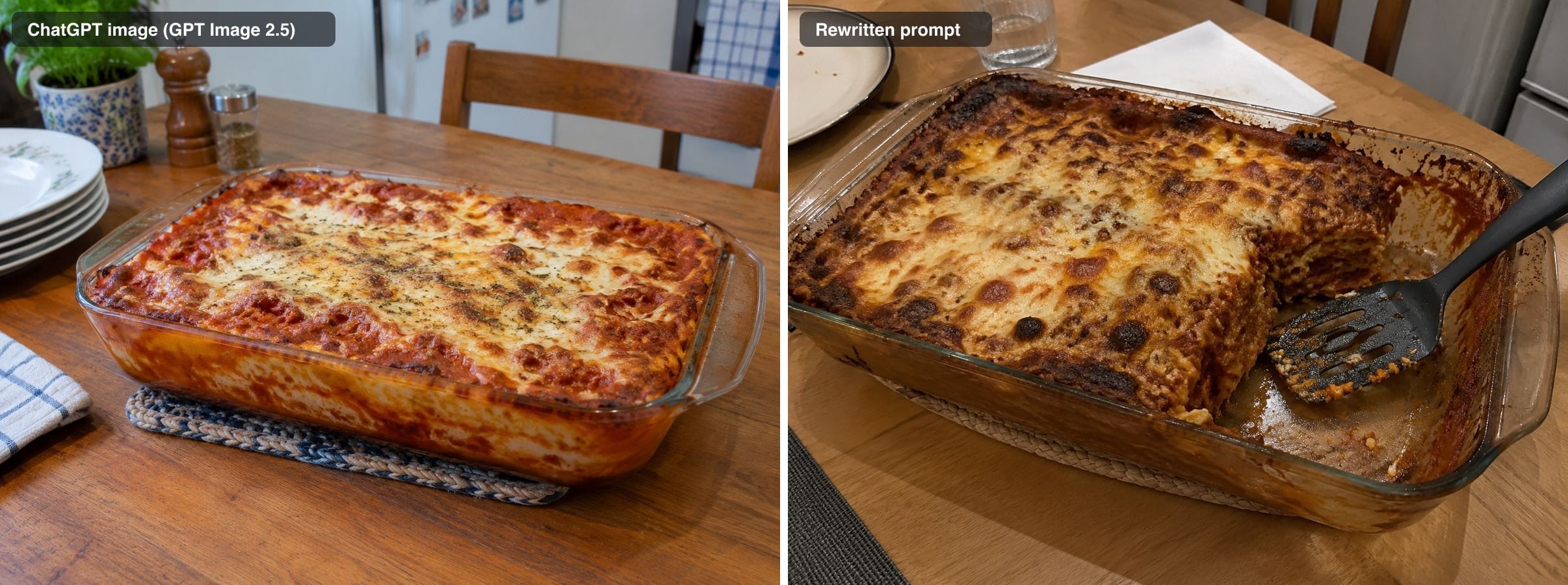
Rewritten prompt: "A phone photo of a homemade lasagna in a used glass baking dish on a kitchen table, one corner already cut out with a serving spatula left in it. The cheese is browned unevenly and slightly burnt at the edges, with sauce baked onto the side of the dish. Light from a ceiling lamp, plain everyday colours, not food-styled, not saturated."
What happened: the cut corner and the spatula make it look eaten from, which is the right idea. But "slightly burnt" came back as heavily browned across the whole top. Realism cues tend to be over-applied, so if a detail comes back too strong, soften the word ("lightly browned") rather than adding more. Time: 33 seconds.
The catch with Fix 1: every rewrite is a new image. When the image you already have is the one you want (the right face, the right pose, the right framing), a new prompt throws it away.
Fix 2: keep the image and run a realism pass
A realism pass re-renders an existing image as an ordinary, unedited phone photo while holding the person, pose, clothing and composition fixed. We ran each original through the sparkpix AI Image Humanizer (our own tool) with its default instruction, which names the usual tells (oily shine, airbrushed skin, glow, colour grading, studio blur) and tells the model to keep everything else. It runs on Google's Nano Banana 2.1 image model; we used the free 1K setting.
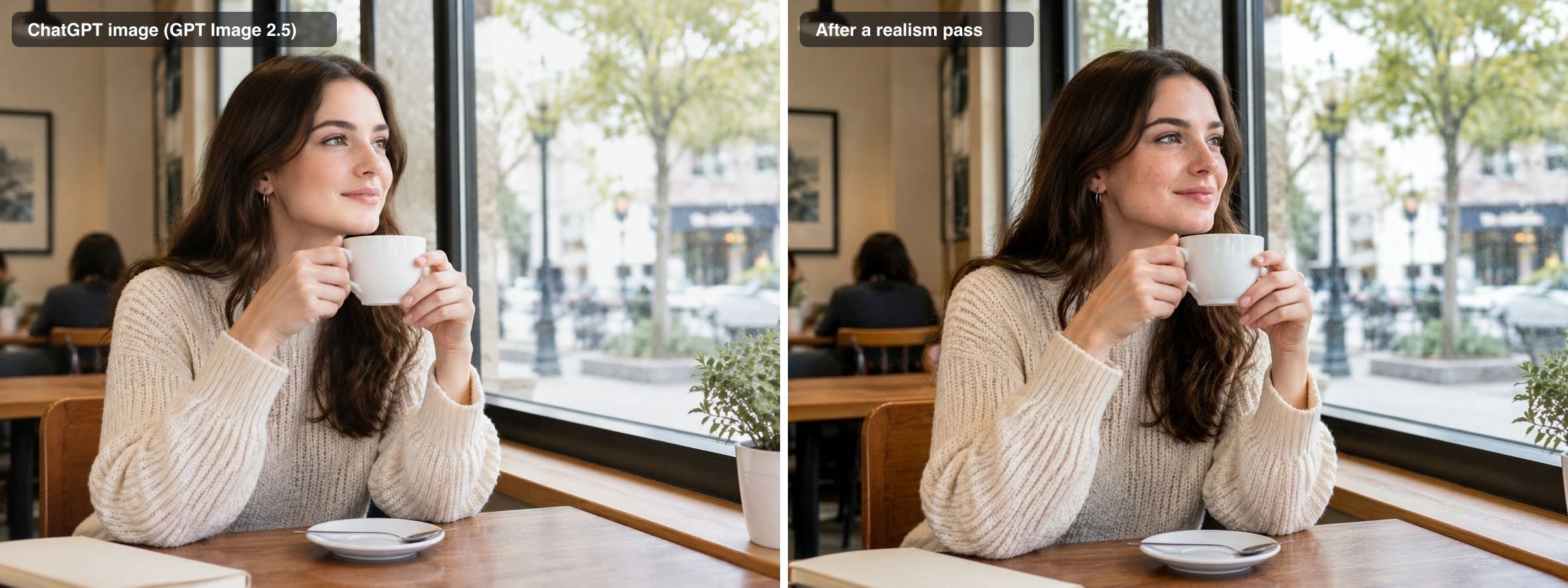
The cafe portrait: the clearest change of the four. Her skin now has pores, faint redness and a few freckles (see the close-up at the top of this article), and the street outside the window is sharper, the way a phone keeps more of the background in focus. Her face, hair, sweater, cup and the whole layout are unchanged. Time: 27 seconds.
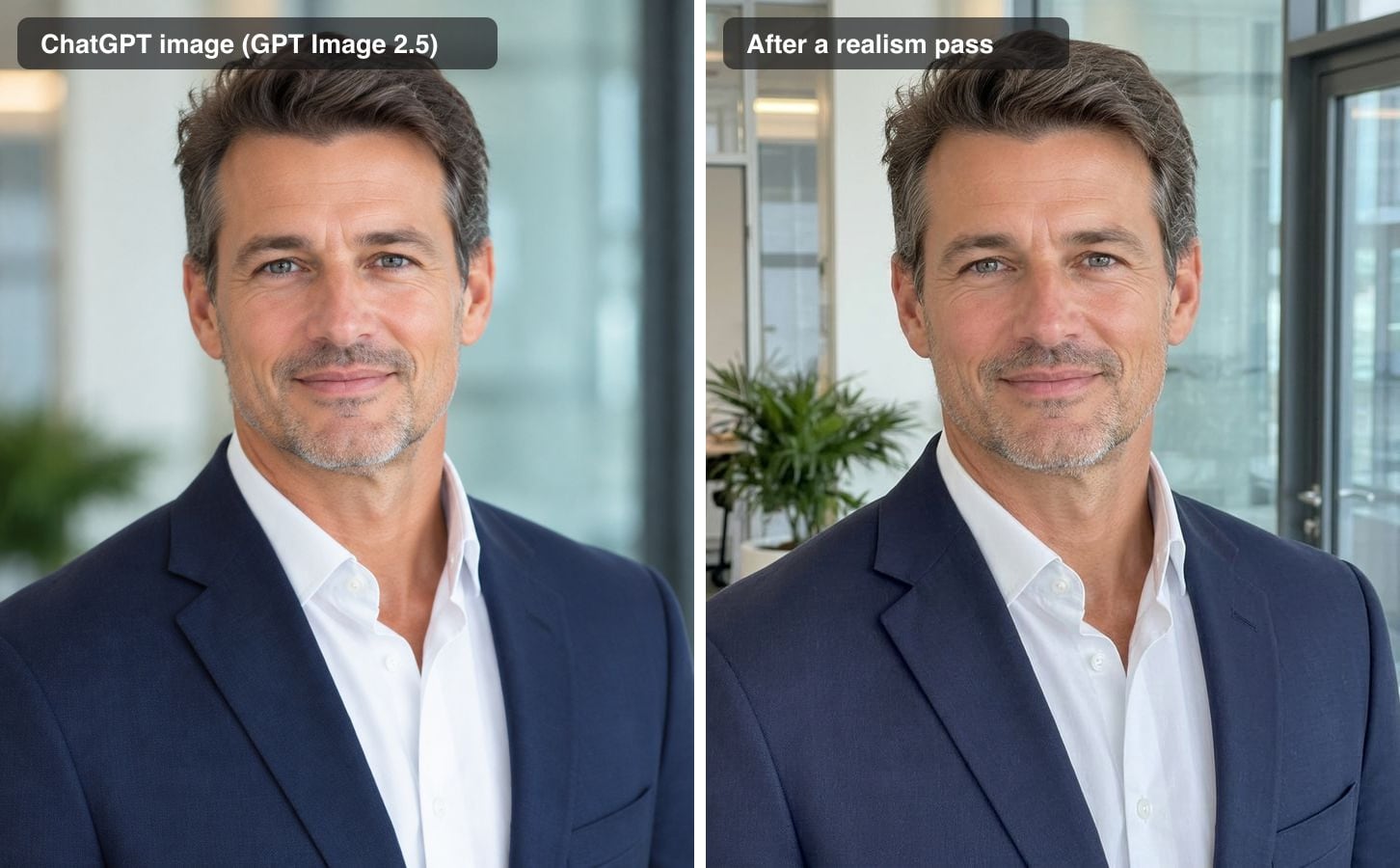
The headshot: the blurred office came into focus (glass doors, a plant, ceiling lights), and the skin texture is a little stronger. It is the same man in the same blazer, and it still reads as a polished corporate photo, because the casting and the pose did not change. Time: 41 seconds.
The dinner and the lasagna: almost no visible change. In those two images the scene was the giveaway, and a realism pass keeps the scene. We also tried naming the problem on the lasagna ("less saturated, less glossy sauce, uneven browning, a matte cheese surface"), and the dish still came back nearly the same. For styled food, rewrite the prompt. Times: 37 and 131 seconds; the lasagna run was unusually slow.
Which fix to use
| What gives it away | Rewrite the prompt | Realism pass |
|---|---|---|
| Model-like people, posed moment | Yes | No, it keeps the scene |
| Airbrushed skin on an image you want to keep | No, you get a new person | Yes |
| Studio-style background blur | Yes | Yes |
| Styled, glossy food | Yes | Barely changed in our test |
| Extra fingers, garbled signs | Generate again or edit that detail | No, it keeps them |
How to make a ChatGPT image look real, step by step
- Decide what gives it away. Staged scene, or only the rendering?
- For a staged scene, rewrite the prompt in ChatGPT as a snapshot: who took it and with what, one ordinary light source, an imperfection, some mess, real skin texture, "not retouched, no colour grading".
- For an image you want to keep, download it at full size from ChatGPT instead of taking a screenshot.
- Run a realism pass with the default instruction. If one thing still gives it away, name it in the instruction box.
- Compare at full size. Check the face, hands and any text against the original.
When neither fix helps
- Wrong hands, extra fingers or garbled text. A realism pass keeps the structure of the image, mistakes included. Generate again, or run an edit that names the one thing to fix.
- You need to pass the image off as a real photo. Don't. A realism pass changes how an image looks, not what it is, and sparkpix does not claim to beat AI detectors. Where a platform, client or contest asks you to disclose AI images, disclose them.
- The image is an illustration. The pass keeps illustrations illustrated; it will not turn a cartoon into a photograph.
- You want a different composition. A realism pass will not move people, change the pose or reframe the shot. That is a new prompt.
Related guides and tools
- How to Make an AI Image Look Like a Real Photo: 4 Methods Compared covers the same problem for images from any generator.
- How to Make Nano Banana Images Look Real tests Google's model, which gives itself away in a different way.
- Realistic AI Image Prompts has prompts that start out looking like real photos.
- GPT Image 2 generator if you want to generate with OpenAI's gpt-image-2 model on sparkpix.
Methodology: all four images were generated once on October 21, 2026 with GPT Image 2.5 Flare through the API at 1K resolution and medium quality, then fixed once by each method; nothing was re-run to get a better result or retouched afterwards. Realism passes used the sparkpix AI Image Humanizer's default instruction on Nano Banana 2.1 at 1K. Times are wall-clock times from submitting the job to receiving the image.
How to make a ChatGPT image look real
- 1
Decide what gives it away
Look at the image and ask whether the scene looks staged (model-like people, a spotless set, a posed moment) or whether only the rendering looks fake (airbrushed skin, creamy background blur).
- 2
For a staged scene, rewrite the prompt
Ask ChatGPT for a snapshot: who took it and with what, one ordinary light source, an imperfection, some everyday mess, real skin texture, and no retouching or colour grading. Generate again.
- 3
For an image you want to keep, download it
Save the image from ChatGPT at full size rather than taking a screenshot, so the realism pass has all the detail to work from.
- 4
Run a realism pass
Upload the image to an AI image humanizer such as the sparkpix AI Image Humanizer and run it with the default instruction. It re-renders skin, light and focus and keeps the person and composition.
- 5
Compare at full size
Check the face, hands and any text against the original at 100% zoom. A realism pass keeps wrong fingers and garbled letters, so fix those with a new generation or a targeted edit.
Frequently Asked Questions
Why do ChatGPT images look fake?
In our tests the giveaway was rarely a technical error. ChatGPT images looked staged: people cast like models in an advert, a spotless table, everyone smiling at the same spot, a background that melts into soft blur, and young faces with no pores. The first group is about the scene and needs a new prompt; the last two are about rendering and can be fixed on the image you already have.
What prompt makes ChatGPT images look realistic?
Describe a snapshot, not a photograph: who took it and with what ("taken by a colleague with an iPhone"), one ordinary light source, some mess or imperfection, real skin texture, and "not retouched, no colour grading". That prompt turned a stock-photo headshot into what looks like a colleague's phone photo against an office wall. It also gives you a different person, because every new prompt makes a new image.
Can I make a ChatGPT image look real without changing the person?
Yes, with a realism pass: a re-render of the same image as an ordinary phone photo, with the face, pose, clothing and composition held fixed. On our cafe portrait it added pores, faint redness and freckles and made the background sharper, and the woman, her sweater and the cup stayed the same. It does not fix a staged scene, because it keeps the scene.
Does making a ChatGPT image look real hide that it is AI-generated?
No. A realism pass changes how an image looks, not what it is, and sparkpix does not claim to beat AI detectors. If a platform, client or contest asks you to disclose AI-generated images, disclose them. Use realism for images that have to look natural to people, such as a profile photo you made with AI and label as such where required.
How long does a realism pass take and what does it cost?
Our four passes took 27, 37 and 41 seconds, and one slow run took 131 seconds. On sparkpix a pass costs 5 credits, new accounts get 5 credits on sign-up so the first image is free at 1K, and credit packs start at $9.99 for 350 credits with no subscription.
Ready to Transform Your Images?
Start creating amazing AI-powered images today with sparkpix.ai
Try It Free