
How to Edit Photos with AI Using Text Prompts: 8 Real Edits and the Prompts Behind Them
How to Edit Photos with AI Using Text Prompts: 8 Real Edits and the Prompts Behind Them
Last updated: October 20, 2026 · Every edit run on October 20, 2026 · By the sparkpix.ai Editorial Team
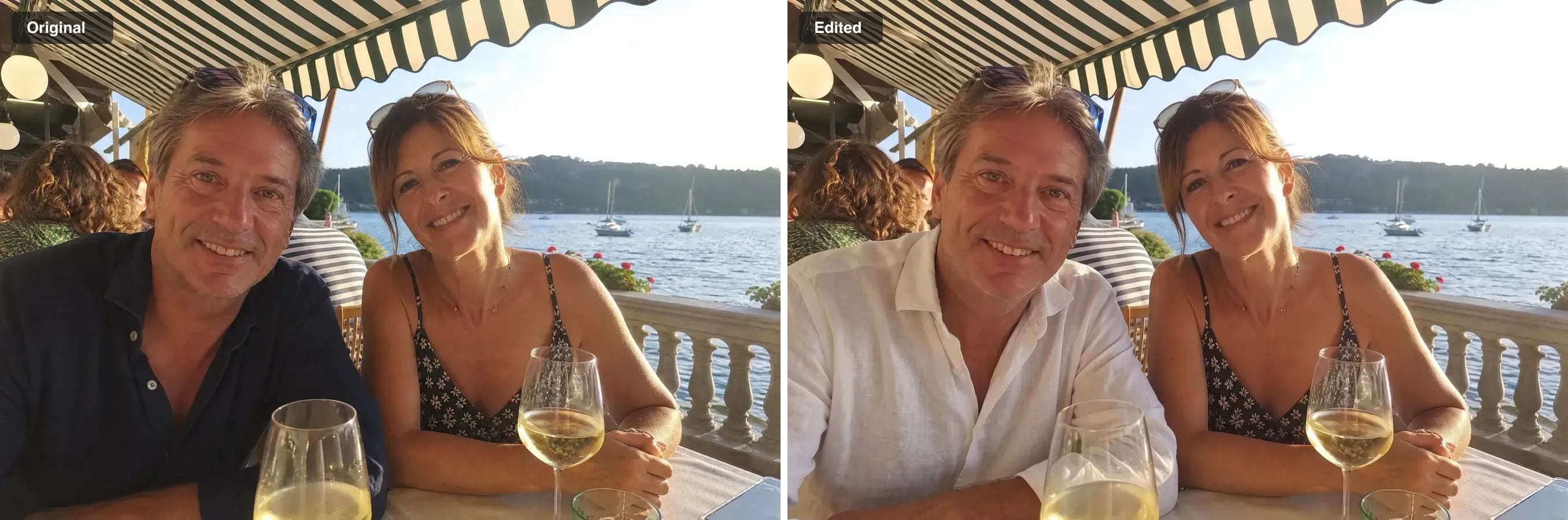
One sentence changed one shirt. Both faces, the wine glasses, the awning and the lake are untouched.
Quick answer: to edit a photo with AI, upload it to a text-prompt photo editor and describe the change in one or two sentences: name what to change, then name what to keep. "Change the man's navy shirt to a white linen shirt. Keep both faces, the wine glasses and the background exactly as they are" changed the shirt and nothing else. "Make this photo look better" gave us a different kitchen. Every edit below took between about 20 and 90 seconds.
What text-prompt photo editing is
A text-prompt photo editor (also called an instruction-based or generative AI photo editor) takes an existing photo and a written instruction, and re-renders only the parts of the photo the instruction touches. Instead of moving sliders or painting a mask, you write "remove the people walking in the street", and the editor rebuilds that part of the picture.
That makes it good at jobs sliders cannot do at all: adding things that were never in the photo, replacing a background, changing the season or swapping one piece of clothing. It also means the editor re-draws pixels rather than adjusting them, which is why the wording of the prompt matters so much.
| Text prompt | Mask + prompt (e.g. Photoshop Generative Fill) | Manual editing (sliders, brushes) | |
|---|---|---|---|
| What you do | Type the change | Paint the area, then type | Adjust everything by hand |
| Best for | Removing, replacing, relighting, adding | Precise changes in one small area | Colour grading, exact retouching |
| Skill needed | Clear writing | Some selection skill | Real editing experience |
| Weak spot | Can change more than you meant | Slower to set up | Cannot add things that are not there |
The prompt formula: change, then keep
Every prompt that worked in our tests followed the same pattern:
- Name the change concretely. "Remove the piles of clothes on the sofa", not "tidy up". Name objects, colours, materials and positions.
- Name what to keep. "Keep all the furniture, the rug, the TV and everything on the walls." This sentence does more to protect a photo than anything else you can write.
- Make one change per prompt. Two changes in one prompt give the model two chances to drift. Run the second change on the result.
- Say where. "At the left edge of the field", "in the foreground", "on the fridge door".
- Describe the light when you add something. A new object has to look as if it was lit by the same sun or lamp as the rest of the scene.
8 real edits, with the exact prompts
How we ran them: each photo was edited once with the image model the sparkpix AI photo editor runs (Nano Banana 2.1), at 2K resolution, with Enhance Prompt switched off so that the model received our words exactly as written. Nothing was retouched afterwards and none of the edits was re-run to get a better result. The source photos come from our own sample library; a few are AI-generated stand-ins, and the editing step works the same way on camera photos.
1. Brighten a backlit face
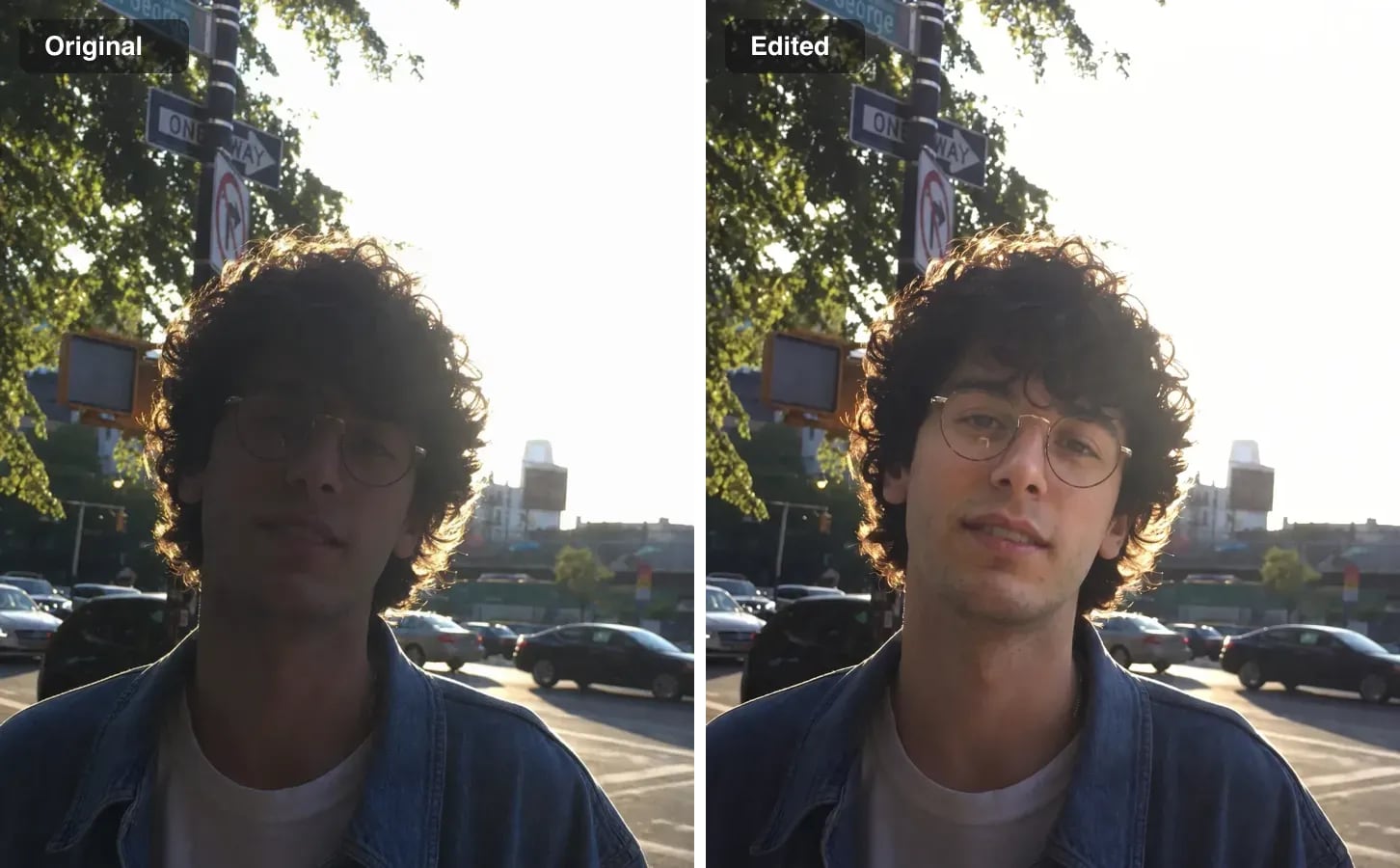
Prompt: "Brighten his face, which is too dark against the bright sky. Keep the background, his hair, his glasses and his clothes exactly as they are."
What happened: the face came out of the shadow with natural skin tone, and the bright sky, the street signs, the rim light in his hair and his glasses stayed as they were. A brightness slider would have blown out the sky to get the same face. Model time: 44 seconds.
2. Remove clutter but keep the room
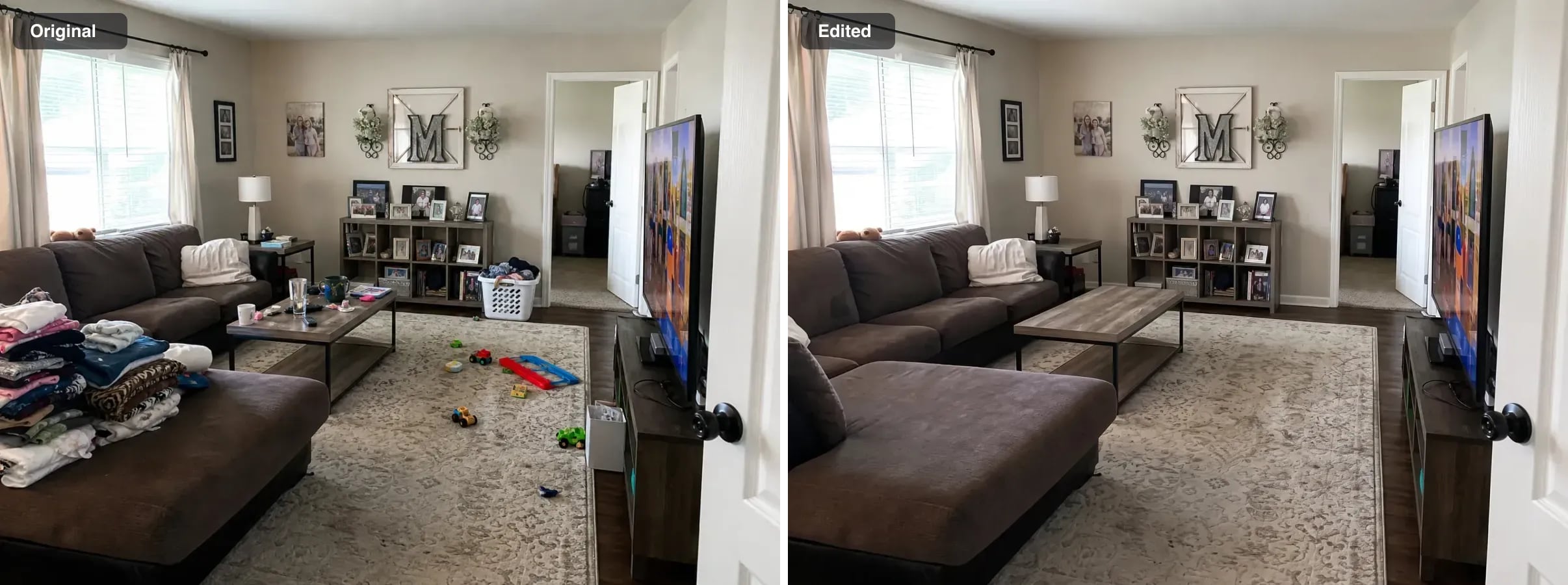
Prompt: "Remove the piles of clothes on the sofa, the toys on the rug and the clutter on the coffee table. Keep all the furniture, the rug, the TV and everything on the walls."
What happened: the laundry, the toys and the things on the coffee table are gone, and the sofa, rug, shelves, photos and wall decor stayed. The model also removed the laundry basket, which we had not named but which clearly counts as clutter, and it filled in the part of the sofa the clothes had been hiding. Model time: 54 seconds.
3. Remove people from a street
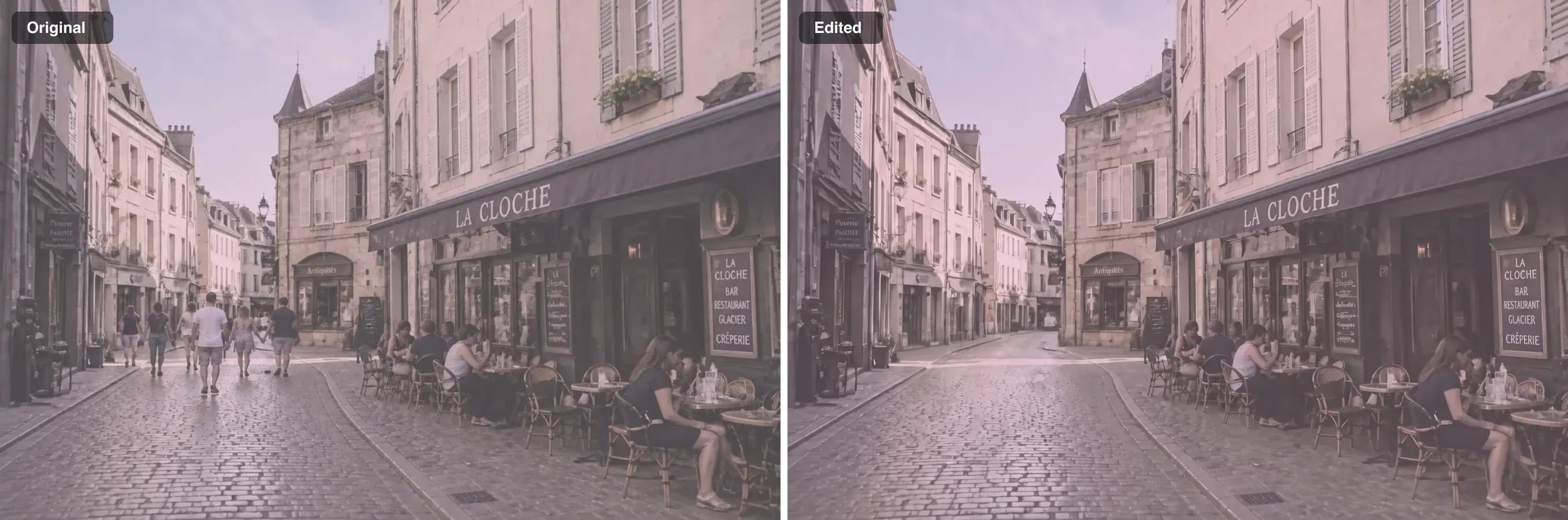
Prompt: "Remove the people walking in the street. Keep the cafe tables, the buildings, the shop signs and the colours exactly as they are."
What happened: the people walking down the street disappeared and the cobbles behind them were rebuilt; the people sitting at the cafe tables stayed, because the prompt only asked for the walkers. The photo's pink colour cast is still there, because we told it to keep the colours. That is the fastest edit we ran. Model time: 19 seconds.
4. Fix a colour cast
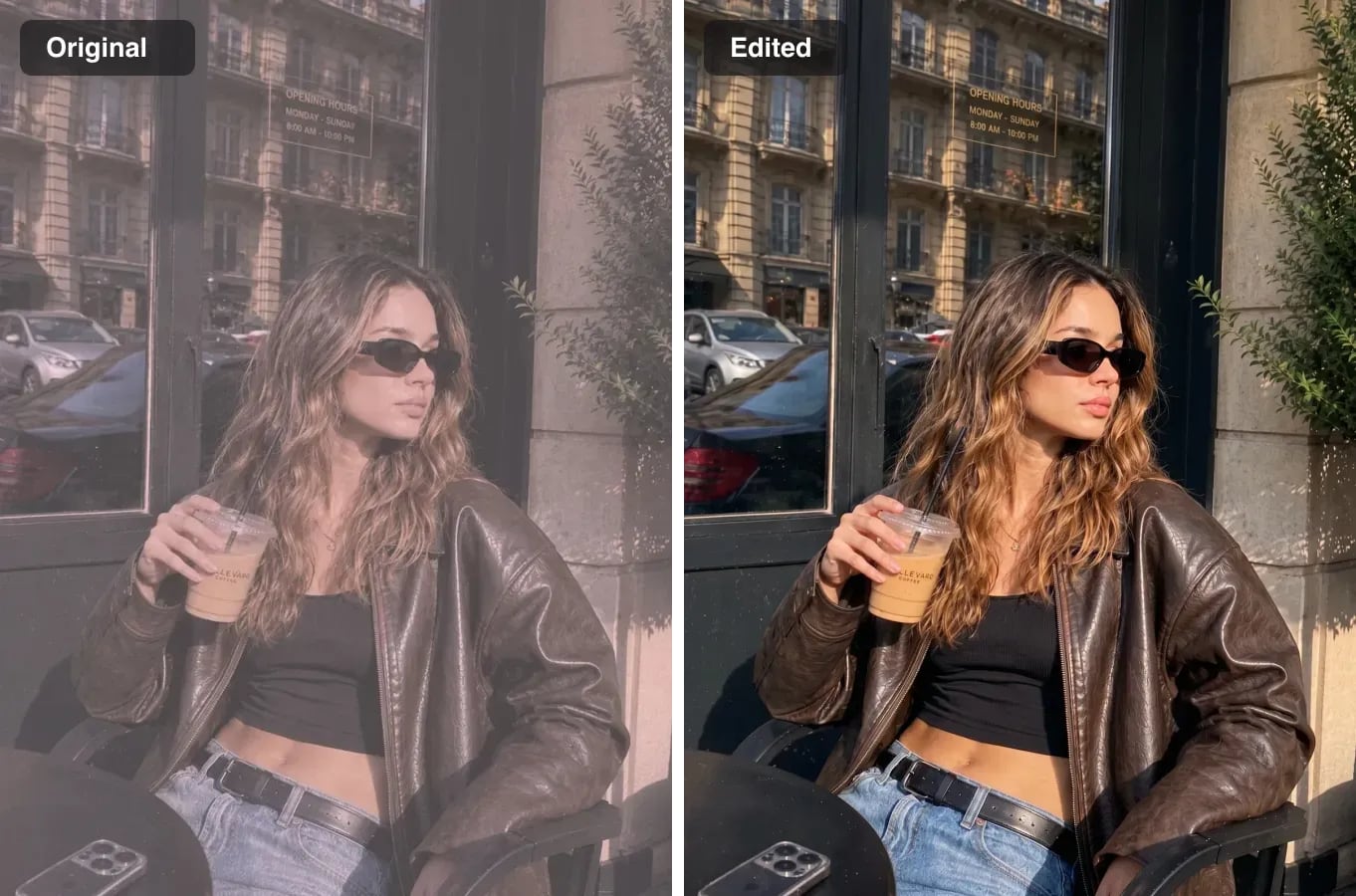
Prompt: "Remove the faded pink tint and restore natural daylight colours. Do not change her face, pose, sunglasses or clothes."
What happened: the pink haze lifted and the photo looks like ordinary afternoon sun, with warmer hair, real denim blue and the street reflected in the window. Her face, pose, sunglasses and leather jacket are unchanged. The result is also a little more contrasty than the original; if you want a softer look, say so in the prompt. Model time: 32 seconds.
5. Replace a background
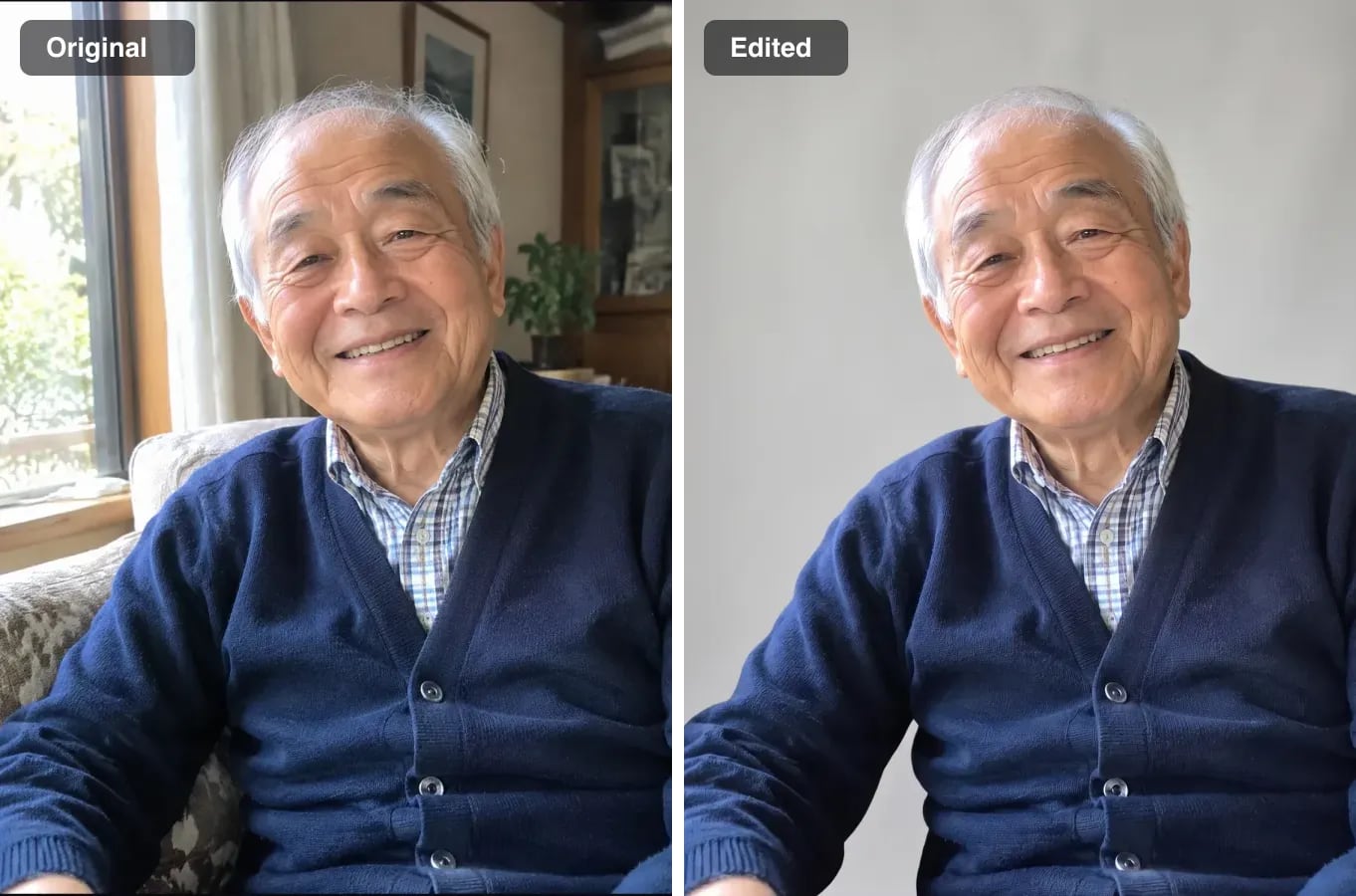
Prompt: "Replace the background with a plain light grey studio backdrop. Keep him, his face, his cardigan and the light on his face exactly as they are."
What happened: the window, shelves and armchair became a plain grey backdrop, and his face, smile, shirt collar and cardigan buttons are the same. Keeping "the light on his face" matters: without it, a background swap often re-lights the person to match the new setting. Model time: 41 seconds.
6. Change the season
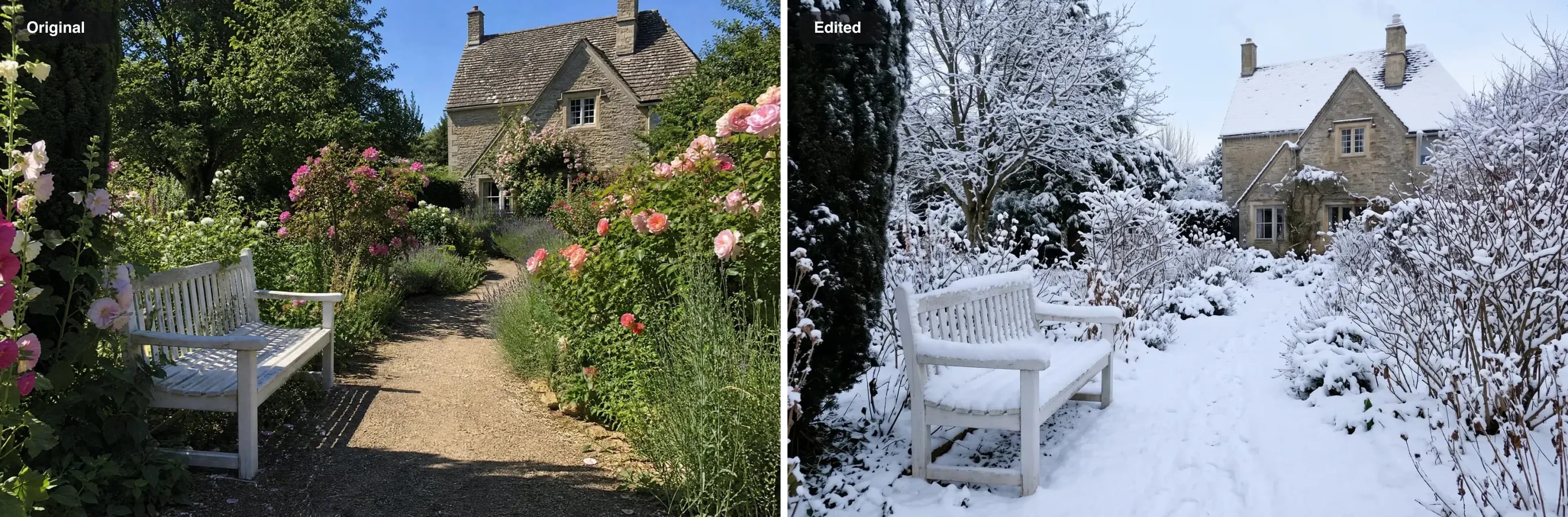
Prompt: "Make it a snowy winter day. Keep the stone house, the white bench and the path in exactly the same place."
What happened: snow covers the roof, the bench and the path, and the summer roses became bare winter shrubs, which is what a real garden would look like. The house, the bench and the curve of the path stayed where they were. Scene-wide edits like this are where text prompts beat any manual tool. Model time: 37 seconds.
7. Change one piece of clothing
Prompt: "Change the man's navy shirt to a white linen shirt. Keep both faces, the wine glasses and the background exactly as they are."
What happened: see the photo at the top of this article. The shirt is now white linen with believable creases, and both faces, the woman's dress, the glasses, the awning and the sailboats are unchanged. Two faces in one photo is the hard case for any editor, and both held. Model time: 43 seconds.
8. Add an object
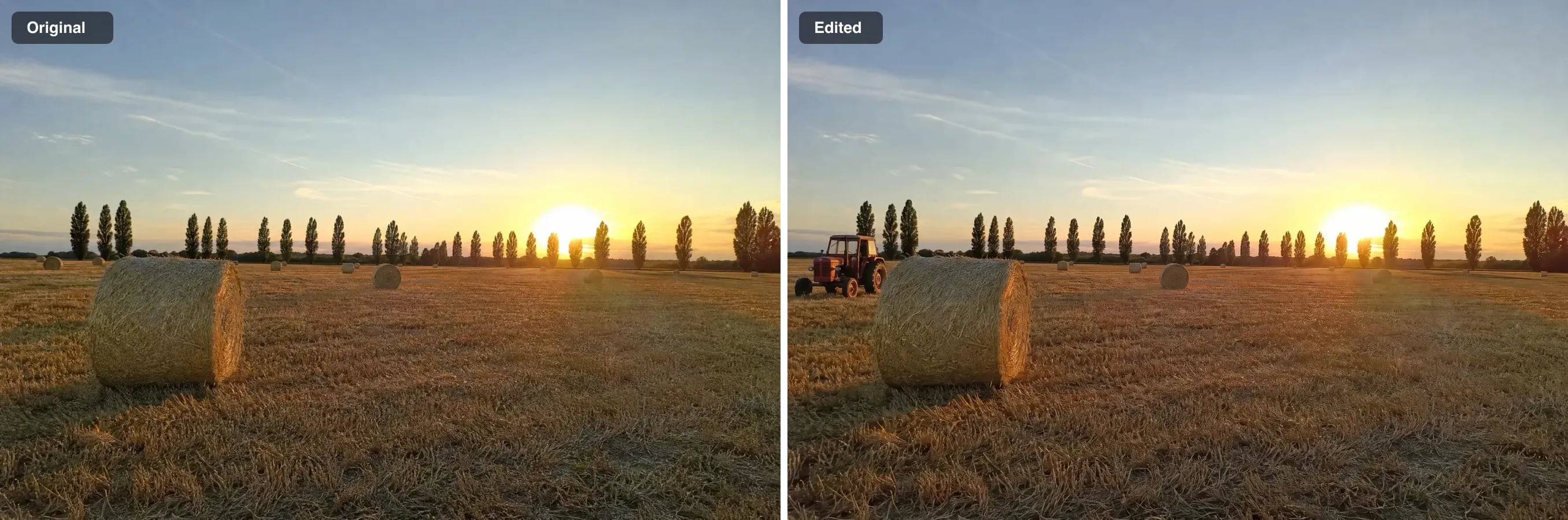
Prompt: "Add a red vintage tractor parked at the left edge of the field, lit by the same low sunset light. Change nothing else."
What happened: a small red tractor now stands at the left edge in front of the poplars, at a believable size for its distance, and the hay bales, sun and sky are untouched. It is not perfect: the tractor is a little brighter than the backlit scene would really allow. Adding objects is the hardest kind of edit to make fully convincing, so check the light and shadows on anything you add. Model time: 37 seconds.
What a vague prompt does: the kitchen test
We ran the same cluttered kitchen through two prompts.
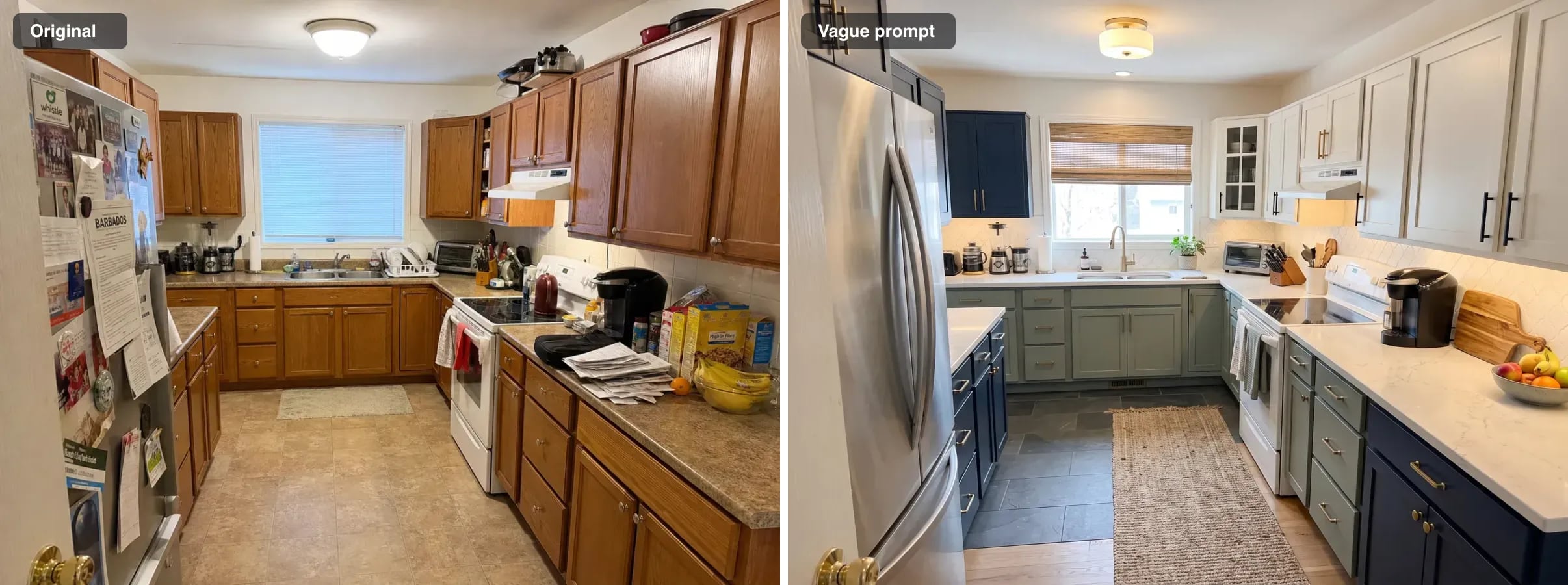
Vague prompt: "Make this photo look better."
The model did make it look better, by its own definition: new navy and sage cabinets, white stone counters, a slate floor, a different fridge and a new window blind. It is a nice kitchen. It is not this kitchen. If the photo is for a property listing, that result is unusable, and in most places it would be misleading. It was also the slowest edit we ran, at 90 seconds.
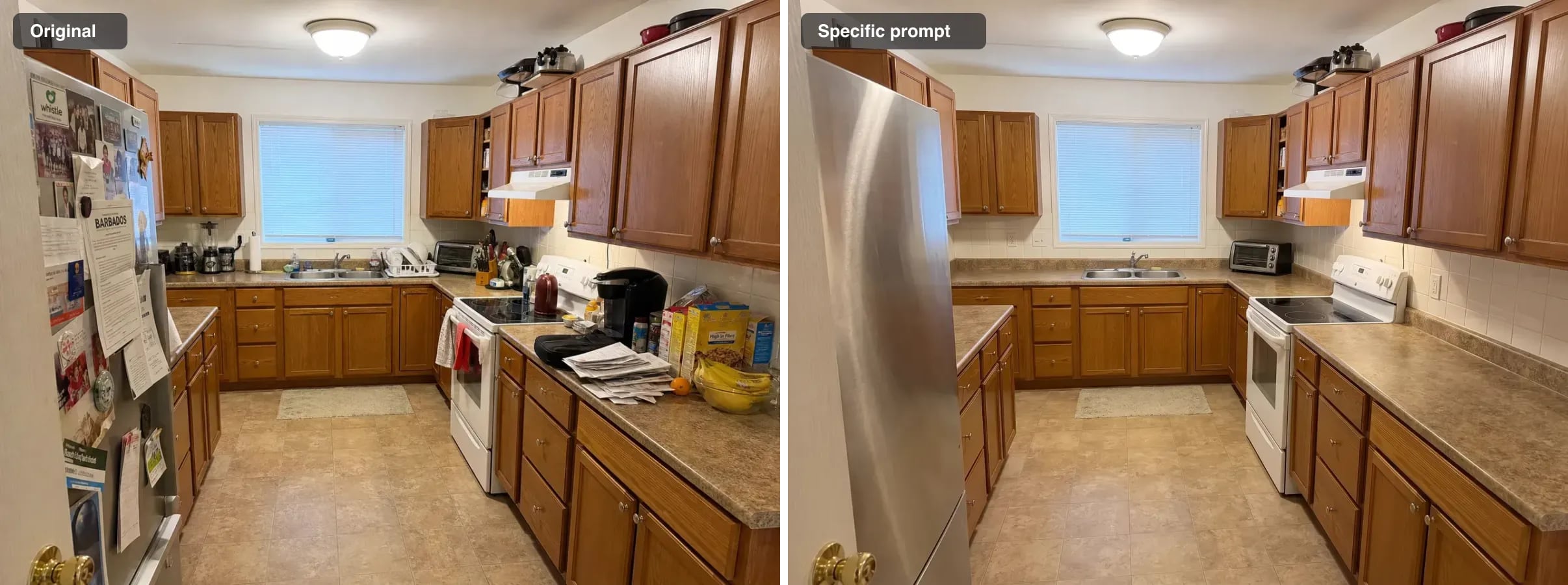
Specific prompt: "Clear everything off the countertops and remove the papers and magnets from the fridge door. Keep the cabinets, the appliances, the window and the lighting exactly as they are."
The counters are clear, the fridge door is bare, and the oak cabinets, the window, the stove and the ceiling light are the same. One flaw: the fridge lost its handle along with the magnets, so it now reads as a plain steel panel. That is typical of what to check after an edit: the objects next to the ones you removed. Model time: 38 seconds.
The lesson: a vague prompt hands the decisions to the model. Name the change and name what to keep, and the decisions stay yours.
How to edit a photo with a text prompt, step by step
- Pick the largest version of the photo. Start from the original file, not a screenshot or a compressed copy.
- Upload it to a text-prompt photo editor, such as the sparkpix AI photo editor on our homepage.
- Write the change, then what to keep. One change per prompt, in concrete words.
- Decide on Enhance Prompt. With it on, an AI rewrites your instruction into a fuller prompt before it reaches the image model, which helps with short prompts like "remove the people". Turn it off when you have written exactly what you want.
- Compare at full size. Check faces, hands, edges, text and the objects next to anything you removed.
- Fix one thing at a time. If one detail is wrong, run a new prompt on the result for that detail rather than rewriting everything.
When a text prompt is the wrong tool
- You need to change one small, exact area. Painting a mask is faster and more precise. Our draw-to-edit AI photo editor lets you brush the area first, then describe the change.
- You need pixel-exact control, such as matching brand colours or colour-grading a whole wedding. Use Lightroom or Photoshop.
- The photo is an ID or a legal document. Passport and ID photos must not be digitally altered in most countries.
- The image contains important text. Models sometimes re-draw signs and labels with wrong letters. Check every word.
- It is someone else's photo and the edit changes what it shows. Editing a person into or out of a scene, or changing a property's condition, can mislead. Keep the original and be open about edits where it matters.
Related guides and tools
- How to Create Images with AI: A Step-by-Step Guide for Beginners covers generating from scratch rather than editing.
- Object Remover for removing people and things with one click.
- Background Remover for a clean transparent cut-out instead of a new background.
- Photo Restoration for scratched, faded and torn old photos.
- AI Image Humanizer when the photo is AI-generated and looks it.
Methodology: each photo was edited once on October 20, 2026 with Nano Banana 2.1 at 2K resolution, with the prompt sent exactly as written (Enhance Prompt off). Times are the model's own processing times for those runs. Results are shown unretouched, before and after side by side.
How to edit a photo with AI using a text prompt
- 1
Pick the largest version of the photo
Start from the original file rather than a screenshot or a compressed copy, so the editor has as much detail as possible to keep.
- 2
Upload it to a text-prompt photo editor
Open an AI photo editor that accepts a written instruction, such as the sparkpix photo editor, and upload the photo.
- 3
Write the change, then what to keep
Describe one change in concrete words, then list what must stay the same: faces, furniture, background, colours.
- 4
Choose whether to enhance the prompt
With Enhance Prompt on, an AI rewrites your instruction into a fuller prompt first. Turn it off when you want your exact words sent to the image model.
- 5
Compare at full size
Check faces, hands, edges and any text against the original at 100% zoom before you download.
- 6
Fix one thing at a time
If something is off, run a new prompt on the result for that one thing instead of rewriting the whole instruction.
Frequently Asked Questions
Can AI edit a photo from a text description?
Yes. A text-prompt photo editor takes your photo and a written instruction, such as "replace the background with a plain grey studio backdrop", and re-renders the parts of the photo the instruction touches. In our tests it brightened a backlit face, removed people from a street, changed one shirt and turned a summer garden into a winter one, each from a one- or two-sentence prompt.
What is the best prompt for AI photo editing?
Name the change, then name what to keep. "Change the man's navy shirt to a white linen shirt. Keep both faces, the wine glasses and the background exactly as they are" changed the shirt and nothing else. Be concrete about objects, colours and positions, make one change per prompt, and describe the light when you add something to the scene.
Why did the AI change more than I asked?
Usually because the prompt left the model free to decide. When we typed "make this photo look better" on a cluttered kitchen, the model repainted the cabinets, replaced the counters and changed the floor. A specific prompt that named what to remove and what to keep left the kitchen alone and only cleared the clutter.
Will AI photo editing change a person's face?
It can, when the edit touches the area around the face. In our tests faces stayed recognisable when the prompt said to keep them, including a full background swap behind a portrait. Always compare the eyes, teeth and jawline with the original at full size before you use an edited portrait.
Is there a free AI photo editor that works with text prompts?
sparkpix gives 5 free credits on sign-up and a text-prompt edit costs 5 credits, so the first edit is free with no watermark. After that, credit packs start at $9.99 for 350 credits, about 70 edits, with no subscription required.
How long does an AI photo edit take?
Between about 20 and 90 seconds in our tests at 2K resolution. Simple removals were fastest (19 seconds to remove people from a street); the open-ended "make this photo look better" took longest at 90 seconds.
Ready to Transform Your Images?
Start creating amazing AI-powered images today with sparkpix.ai
Try It Free